Boards and stages
Track every treatment enquiry through your pipeline on the Journeys board.
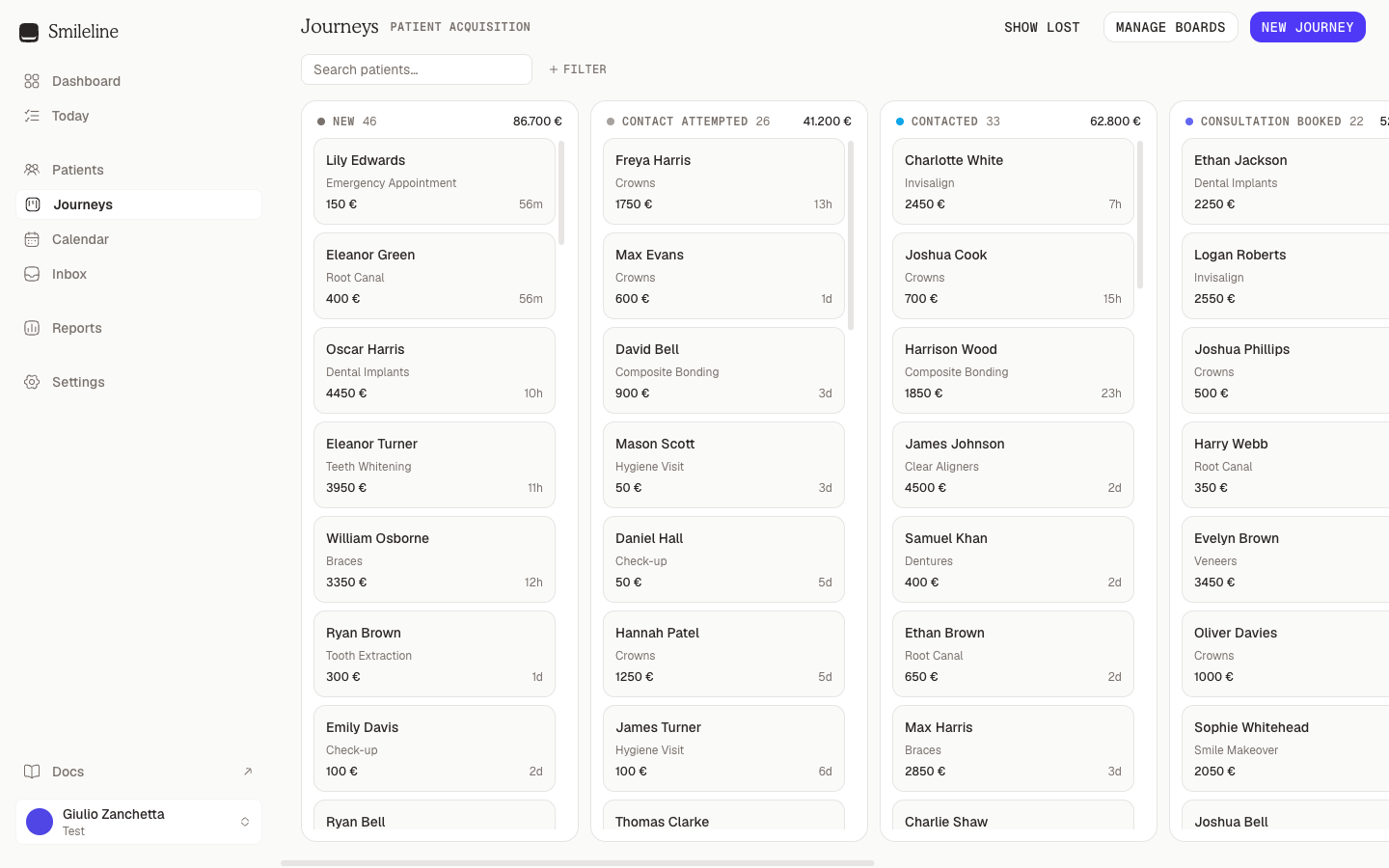
Open Journeys in the sidebar to see your board: a kanban view where every card is one patient's journey towards one treatment, and every column is a stage of your pipeline — from first enquiry to treatment started.
Boards
A board is one pipeline of stages. Most practices run a single board; if yours has several (for example, one per treatment type), switch between them with the board picker in the header. Each board remembers its own stages, and new journeys land on the board configured for their treatment.
Manage boards and stages
Owners and managers click Manage boards in the header — or open Settings → Journey boards — to edit the funnel itself. On a phone (screens narrower than 768px) the header button is hidden; use the Settings route. The page is a two-part editor: pick a board in the list at the top, and that board's stages load underneath it.
Click anywhere on a board's row. The selected row is tinted, marked with a bar down its left edge, and its arrow turns to point at the stage list below, which now reads Stages on that board.
Edit the stages: drag the grip handle to reorder them, click a stage name to rename it in place, or click the stage's pencil to set its name, category, colour, likelihood to go ahead and Rotten after (days) together.
Click Add stage to append a blank row to the bottom of the list, type a name, and press Enter. The row stays open so you can add several stages in a row — press Escape, click the ✕, or click away to close it.
Each board row carries its own actions on the right: the pencil renames the board, the pin makes it the default that new journeys land on, and the archive icon hides it from the Journeys page. The default board can't be archived — make another board the default first.
A stage's category is either Open or Going ahead, and it's what keeps reporting comparable however you rename the stage.
Archived boards and stages stay reachable through the Archived toggle above each list, where a restore icon brings them back.
Stages and column totals
Each column header shows the stage's name, the number of cards in it, and the total value of those cards. Open stages sum the potential value of active journeys — your pipeline. A going-ahead stage sums what those journeys are actually worth — your booked revenue.
Cards
A card shows the patient's name, the treatment, the journey's value, and how long it has sat in its current stage. It also shows the same lead details as the Patients list:
- Where the lead came from — the source, followed by the campaign (and the ad set and ad, when the lead arrived on an ad). Hover over it to read it in full, along with the lead form's name.
- How far it has got — a dot for each open stage of the board, with the current one ringed, followed by its name (for example Contacted). Failed to Attend is a side step most leads skip, so it has a dot only while the lead is in it, ringed in amber.
- Lead status — a coloured pill: Not contacted, Contact attempted, Contacted in followed by how long the first real contact took, Going ahead or Not proceeding.
- Calls — once the lead has been called, the number of calls made and received.
An active journey also carries a Stale badge after it has spent the stage's configured Rotten after (days) period there.
Snoozing a journey hides its Stale badge until the snooze ends. The original time in stage still applies when it wakes. Journeys that are going ahead, not proceeding or archived are never marked stale.
Archiving a patient takes their cards off every board, even while the journey itself is still active. The journey is kept and stays visible on the patient's own record; find archived patients through the Archived preset view on the Patients page.
Owners and managers set Rotten after (days) when editing a stage under Manage boards. Leave it empty when that stage should never mark journeys stale.
- Click the card, or the patient's name, to open the patient in the same panel as the Patients list: their full record and journeys on Overview, their conversation on Chat. Close it and the board reloads, so anything you changed shows on the cards. The address bar names the patient, so a refresh opens the panel again.
- Ctrl-click (⌘-click on a Mac) the patient's name, or pick View patient in the card menu, to open their patient record page instead.
- The ⋯ menu on each card offers Move to… (any other column, the going-ahead one included), Reopen once a journey is going ahead or not proceeding, and Mark as junk… — see Move, close, and reopen.
Filter the board
Use Search patients… to find cards by patient, and + Filter to narrow the board by:
- Owner — one or more team members, or No owner for unassigned journeys.
- Treatment, Practitioner, Location — one or more entries.
- Channel — where the enquiry came from.
- Created and Entered stage — date ranges with the same relative presets as the patients list.
Filters appear as chips; click a chip to edit it, its ✕ to remove it, or Clear to reset. The board URL carries your board, search, and filters, so you can bookmark or share the exact view.
Not proceeding and board size
Journeys not proceeding stay in the stage where they stalled but are hidden by default — toggle Show not proceeding in the header to reveal them.
The board displays up to 500 journeys at a time. If you see "Showing the first 500 journeys", add filters to narrow the board.
Start a new journey
Click New journey in the header.
Search for the patient and pick them from the results.
Choose the Treatment. Optionally set the Location and an estimated value — left empty, the value defaults from the treatment's price.
Click Create journey. The card lands in the board's first stage, and a first-contact task appears on the Today page.
You can also start a journey from the Journeys panel on a patient record, where the patient is already filled in.
To do
The work waiting for you in the clinical workspace — online requests, recalls due, treatment to book, notes to sign, voice notes to write up, images to file, forms to review, lab work, lab orders that need you, referral replies, family links to confirm, money on closed accounts and membership months to review — each list with its count, plus your own tasks and the team's.
Move, close, and reopen
Move journeys between stages, record that a patient is going ahead or not proceeding, and reopen closed ones.