List and filters
Search, filter, and sort the patients table to find exactly the records you need.
The Patients page lists every patient record in your practice. Use search, filters, and sorting together to narrow thousands of records down to the handful you want — then save the result as a view, export it, or act on it in bulk.
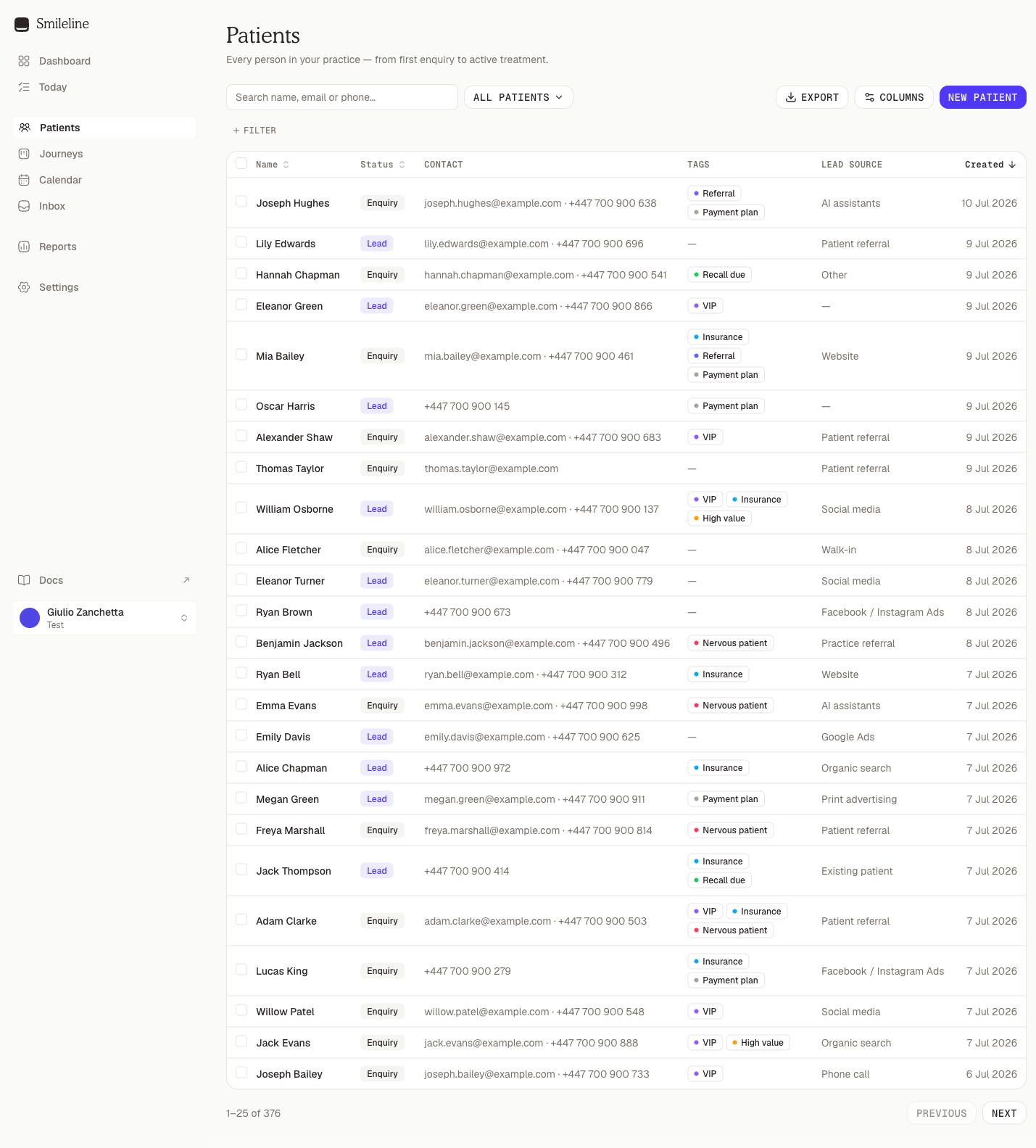
The clinical workspace's list
Patients in the clinical workspace lists your practice's patients — never enquiries or leads — with the columns a clinic works from:
| Column | What it shows |
|---|---|
| Name | The patient's name. |
| Date of birth | The date of birth with the age in brackets. |
| Mobile | The patient's mobile number. |
| Dentist, Hygienist | The patient's own dentist and hygienist, set on the record's Details tab. |
| Price list | The price list the patient's treatment is charged from, as a coloured pill. |
| Next visit | The patient's next appointment from now. Cancelled and no-show appointments don't count. |
| Last visit | When the patient last attended: their latest appointment marked Done. |
| Recall | When the patient's next recall is due: the earliest active recall not booked yet. |
| Balance | What the patient owes: red when they owe, green when they are in credit. |
In a US practice, Balance is the patient's part: the balance less what insurance is still expected to pay. While an insurance estimate is missing it reads Couldn't check rather than an amount, so a figure insurance may still change is never shown as what the patient owes.
Balance shows only for team members who can see the patient ledger, and Recall only for those who can see recalls. For everyone else the list leaves those columns out altogether. The CRM's columns, such as Type, Tags, Lead source and Created, are still under Columns, switched off.
Columns also offers two numbers: Smileline's own chart number, and Previous system no., the number an earlier system gave the patient when they came in by an import. They are always separate columns, and one never stands in for the other.
When the list is narrower than its columns, on a laptop or in a half-width window, it leaves out the least important ones first, so the rest fit without scrolling sideways. From most to least important: Name, Date of birth, Mobile, Next visit, Balance, Recall, Last visit, Dentist, Hygienist, Price list. Name always shows. Widen the window and they come back. A column you switch on or off yourself under Columns stays that way at any width, so if you switch on a column the list left out, it stays on screen and the table scrolls sideways if it has to. Reset columns hands every column back to the automatic fit.
Click a row, or a patient's name, to open the patient sheet beside the list. To go straight to the clinical record, Ctrl-click (⌘-click on a Mac) the name, or use Open record in the sheet. The record opens where your role starts: Chart for dentists, hygienists and nurses, and Appointments for the front desk, managers and owners, unless you last had another tab of that patient's record open in this browser tab.
Add a patient
Click New patient.
Type the first name, last name and date of birth. Once both names, or the date of birth, are in, Possible matches lists anyone already on file with a similar name or the same date of birth. Same date of birth marks the closest. Click Open record to go to that patient instead of adding them twice.
Click Create patient to add them and open their record, or Save and book to add them and go straight to the diary (the schedule in a US practice) to book their first appointment.
Someone added here is a patient straight away, not an enquiry. Save and book shows for team members who can book appointments.
Add a lead
In the CRM, click New lead on Patients. It's the same dialog as Today's, with the same duplicate checks: see Adding a lead yourself. Once it's saved, the new person's record opens. Use existing then Open lead opens the record of the person who was already there.
See each patient's journeys
In the CRM's list, each patient's journeys hang under their row from a connector, one line per journey, newest first, whether it is open, going ahead or not proceeding. Archived journeys are left out, as they are on the patient's record. A grey band separates one patient and their journeys from the next, and pointing at any of their lines highlights the whole group.
| Part | What it shows |
|---|---|
| Treatment | What the patient enquired about, and the date the enquiry came in. |
| Source | Where this enquiry came from. A lead form shows Facebook, Instagram, Google Ads or TikTok; anything else shows the source of the visit it arrived on, or the patient's own lead source. After it come the campaign, ad set and ad, or the link's utm_content, as far as the source names them. Hover over it to see them in full and the lead form's name. |
| Stage | One dot per open stage of the journey's board, with the current stage named. Every dot turns green once the journey is going ahead, and the dots grey out once it is not proceeding. |
| Contact | A coloured pill: Not contacted, Contact attempted, the journey's stage once someone has reached them (for example Contacted or Consultation Booked), Going ahead or Not proceeding. Once someone has worked the journey, the pill is followed by its owner — the team member who handled the lead. Then the number of calls (made and received), the number of messages (hover over it to see how many were sent and received), the tries your team logged including AI calls that connected, and when the last call or message was. |
Click a journey's line to open the patient, as you would by clicking their row. Click Hide journeys above the table to go back to one line per patient, and Show journeys to bring them back. Your browser remembers which you chose.
Each journey's line shows where that enquiry came from. The Lead source column, off by default and under Columns, is the patient's own source, set when they first came in, so for a returning patient the two can differ.
Search
Type a name, email address, or phone number into the Search name, email or phone… box. The list updates as you type, ranked by best match. Clearing the box restores your current filters and sort.
Type more than one word to narrow the search: every word has to match, so philip garf finds Phillip Garforth and not every other Philip. Each word still forgives a typo, and a phone number typed in groups (07700 900123) is read as one number.
The same box finds a patient by date of birth, chart number or a previous system's number, matched exactly:
- Date of birth — type the whole date with a four-digit year, separated by
/,-or.. Day and month follow your practice's country: day first everywhere except the US, so03/04/1984is 3 April 1984 for a UK practice and 4 March 1984 for a US one.1984-04-03reads the same everywhere. A date that doesn't exist, such as31/02/1984, matches no one's birthday. - Chart number — type the number on its own, for example
4821. It is the Chart number on the patient's Details tab in the clinical record. - Previous system no. — type the number an earlier system gave the patient exactly as it was imported, for example
A-1023. Two old systems may have used the same number, so this can find more than one patient: check the date of birth before you open one.
All three work in every box that searches patients, including quick search and the patient picker when you book an appointment.
Filter the list
Filters narrow the list by field. Each active filter appears as a chip above the table.
Click + Filter above the table.
Pick a field from the list, or type in Filter by… to find it faster.
Set a value in the editor that opens. Changes apply immediately and the filter's chip appears straight away — there is no confirm button.
To change a filter later, click its chip and edit it in place. Click the ✕ on a chip to remove that filter, or Clear to remove them all.
Leads nobody has contacted yet
Click + Filter, pick Journey and tick Not contacted to list the leads whose journey line shows the Not contacted pill: an active journey that nobody has tried to reach yet. Once the pill moves on to Contact attempted, a later stage, Going ahead or Not proceeding, the lead leaves this list. The chip reads Journey Not contacted. Tick a stage in the same filter, for example New, to see only the untouched leads in that stage. Untick Not contacted, or click the ✕ on the chip, to switch it off. The Not contacted view opens the same list in one click from the view switcher.
You can filter by:
- Type — Enquiry, Lead, Patient, Inactive, Archived, Deceased.
- Tags — patients with Any of or None of the tags you tick, or simply Has any tag / no tags.
- Lead source and Location — one or more entries from your practice settings. Lead source also offers Unknown for patients with no lead source recorded.
- Journey — whether the patient has a journey, its status (Active, Going ahead, Not proceeding), and which board or stage it sits in. Not contacted narrows it to journeys nobody has tried to reach yet (see above).
- Created, Updated — date ranges with relative presets (see below).
- Booked — patients with a lead booked in a date range, with relative presets. A booking counts on the day it was made: an appointment booked on the lead, or a booking recorded by date on Today. The lead still matches after it moves on to a later stage. Cancelled and no-show bookings don't count, and nor do appointments that aren't on a lead, such as a returning patient's check-up. The dashboard uses the same rule for what counts as a booking. For one click, pick the Booked today or Booked this week view.
- Booked by — patients with a lead booking made by one or more team members: whoever booked the appointment, or whoever recorded the booking on Today. Add it to Booked to see one person's bookings in that range, for example Booked this week and Booked by Sam. Unknown lists bookings credited to no one, such as appointments brought in by an import. It credits bookings the same way as the dashboard's Team leaderboard.
- Date of birth — a plain date range.
- Age — completed years on your practice's today, From and To, either one alone (see Ages and birthdays).
- Birthday — birthdays falling in a date range or a relative preset, in any year (see Ages and birthdays).
- Gender and Preferred contact — one or more values.
- Email and Mobile — has a value or is missing one.
- Marketing consent, SMS opt-out, Email opt-out, WhatsApp opt-out — yes or no.
- City, Province, Postal code, Country, Language — text contains.
- Codice fiscale (Italian practices) — text contains.
The clinical workspace's list adds its own filters at the top of the list:
- Dentist, Hygienist and Price list — one or more entries, or None for patients without one.
- Next visit — has a visit booked from now on, or has none.
- Last visit — a date range with relative presets. To find patients not seen since a date, set only To. Patients who have never attended don't match any range.
Ages and birthdays
Age and Birthday work from your practice's today, so a view saved as "Children 0–17" or "Birthdays this week" stays current without being edited.
- Age counts completed years: someone born on 12 October 2008 is 17 until 12 October 2026 begins in your practice's time zone, and 18 from then on. Set From 0 and To 17 for children, or only From 65 for everyone 65 or older. The chip reads, for example, Age 0–17.
- Birthday matches the day and month of birth in any year. Pick a preset such as Today, This week or This month, or a From/To range; a range across New Year, such as 28 December to 3 January, takes both ends. A range with only From runs to the end of that year, and one with only To from the start of it.
- Someone born on 29 February turns a year older, and has their birthday, on 1 March in a year that isn't a leap year.
- A patient with no date of birth has no age and no birthday, so these filters leave them out. Each filter's editor says so.
Export, bulk actions and campaign audiences built from the list take exactly the same people, judged on the same practice day; a background export judges them on the day you started it. Being on the list doesn't make anyone contactable: bulk messages still check each patient's consent.
Date presets
The Created, Booked, Updated, Last visit and Birthday filters offer relative presets alongside a custom From/To range: Today, Yesterday, This week, Last week, This month, Last month, Last 7 days, Last 30 days, Last 90 days, Last 12 months, Last 24 months, and This year.
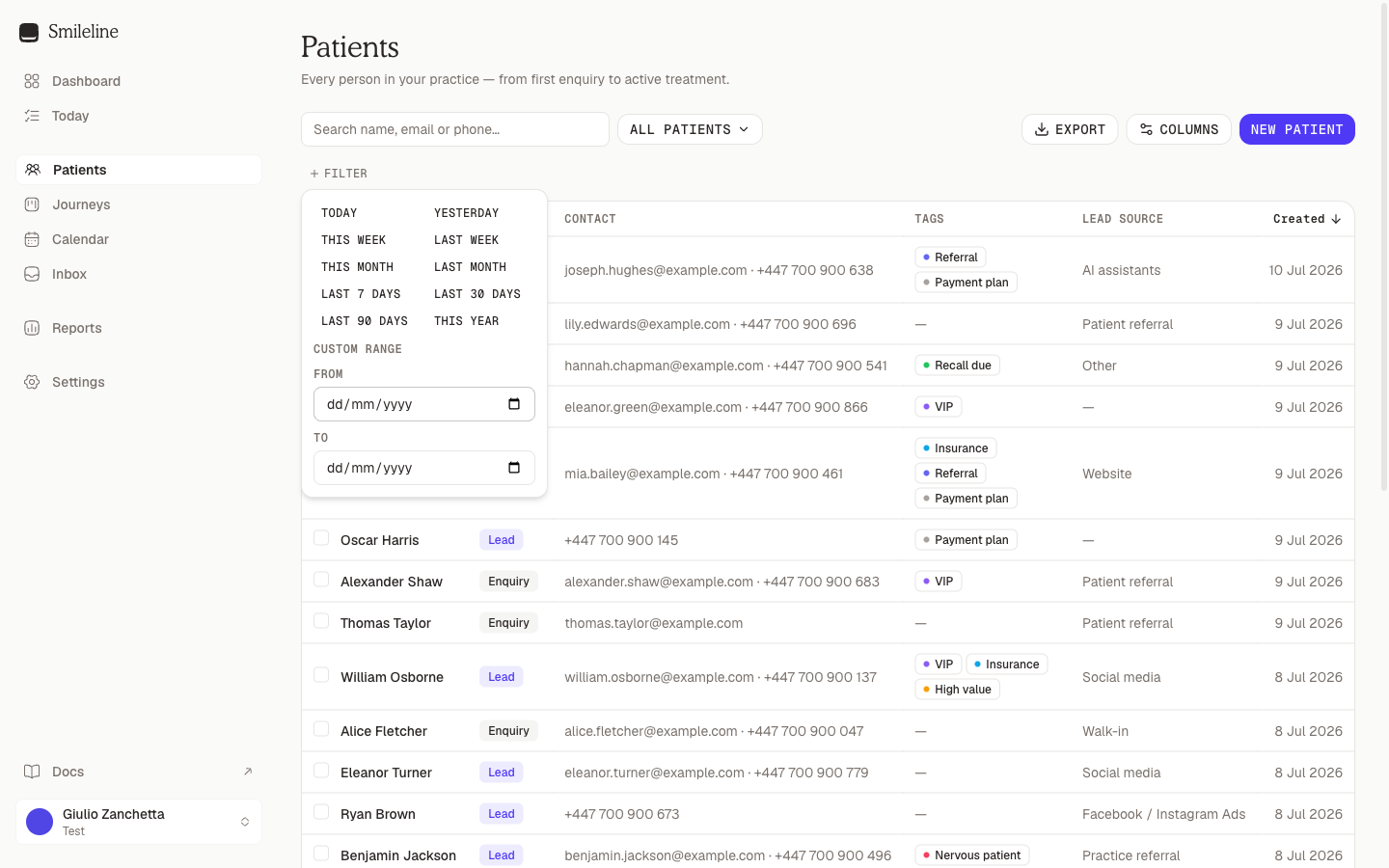
Presets are relative, not fixed dates: a view saved with "Created this week" always shows the current week. Weeks run Monday to Sunday, and all presets resolve in your practice's time zone.
Sort
Click a column header to sort by it; click again to flip the direction. You can sort by Name (surname first), Type, Email, City, Date of birth, Created, and Updated. The default is Created, newest first.
The clinical workspace's list also sorts by Next visit and Last visit. Patients without one come last, whichever way round.
Choose columns
On a phone (screens narrower than 768px) the saved-views picker and the Columns button are hidden; the list keeps search, filters, and New patient. Click Columns to open the column picker. Tick columns to show or hide them, drag the handle to reorder, and use Reset columns to restore the defaults. By default the table shows Name, Type, Contact (the mobile number, with the email beneath it) and Created (the date and time the patient was added, in your practice's time zone), narrow enough not to scroll sideways on a laptop; Tags, Lead source and the rest are under Columns. The clinical workspace's defaults are the clinic's columns.
The visible columns and their order also decide what a CSV export contains. A column the clinical list leaves out only because the window is narrow is still exported.
Share what you're looking at
The page URL always reflects your current search, filters, sort, and page. Copy it from the address bar and send it to a colleague — they'll see the same slice of the list. To keep a filter combination around permanently, save it as a view.
The list shows 25 patients per page; use the pagination controls under the table to move between pages.
Look at a patient without leaving the list
Click any row, or a patient's name, to open their patient record in a wide panel covering three quarters of the screen on the right (the whole screen on displays narrower than 1024px). It is the full record, in the same two columns as the record page when the panel has room, and every field edits in place. Export, Archive, the CRM | Clinical switch and your PMS's actions are on the full record.
Along the top of the panel are two tabs, as on Today: Overview holds the record, and Chat holds the patient's conversation, where you reply, switch channels and use templates as you would in the Inbox. A badge on Chat counts unread messages. If nobody has messaged the patient yet, the first message you send starts the thread right there. Chat appears for roles with Inbox access.
- Previous (↑) and Next (↓) at the top right of the panel, beside ✕, open the patient before or after this one in the list's current search, filters, and sort. They carry on past the 25 rows on screen — the list turns the page for you — and the counter before them shows where you are, for example 26 of 120.
- Open the full record at the bottom of the panel opens the patient's own page. To open that page in a new tab straight from the list, Ctrl-click (⌘-click on a Mac) the patient's name.
- The address bar names the patient in the panel, so refreshing the page, or opening a copied link, opens the same patient's panel again over the list.
- Close the panel with ✕, Esc, or a click on the list behind it. The list reloads, so anything you changed in the panel shows in the table. Esc while you are editing a field cancels only that edit.
The desktop app's Patients list opens the same panel, without darkening the list behind it, so an incoming call's pop stays on top and can be answered.
The clinical patient sheet
In the clinical workspace's list, a row opens a narrower sheet with what the front desk needs to know about the patient, without opening their record. Along its top are two tabs: Patient and Chat.
Patient shows:
- The patient's name, date of birth with their age, chart number, medical alert pills and price list, with their mobile (and a call button) and email underneath.
- Balance — what they owe, in red, or their credit, in green, and anything still waiting on insurance.
- Medical — their alerts, allergies, conditions and medications.
- Upcoming — their next three appointments and, if one is due, when their recall is due.
- Details — the pinned note, their other phone, how and when they like to be contacted, which channels they opted out of, and their dentist and hygienist.
- Open plans — their treatment plans still in progress.
Each card shows only for roles that can see that part of the record. Chat is the patient's conversation, the same as on the CRM's panel above, and appears for roles with Inbox access.
At the bottom, Open record opens the patient's clinical record and Book books them in the diary, bringing you back to the list with the sheet open once the appointment is placed. Previous, Next, the address bar and closing the sheet work as described above.