The patient record
Everything about one patient — contact details, tags, treatment journeys, and their full activity history.
Click any row in the patients list to open that patient's record in a panel beside the list, where Previous / Next step through the list (see Look at a patient without leaving the list). Open the full record at the bottom of the panel opens it as its own page. The record gathers everything the practice knows about the person: profile details on the left, then tags, journeys and Activity, the patient's full history, on the right.
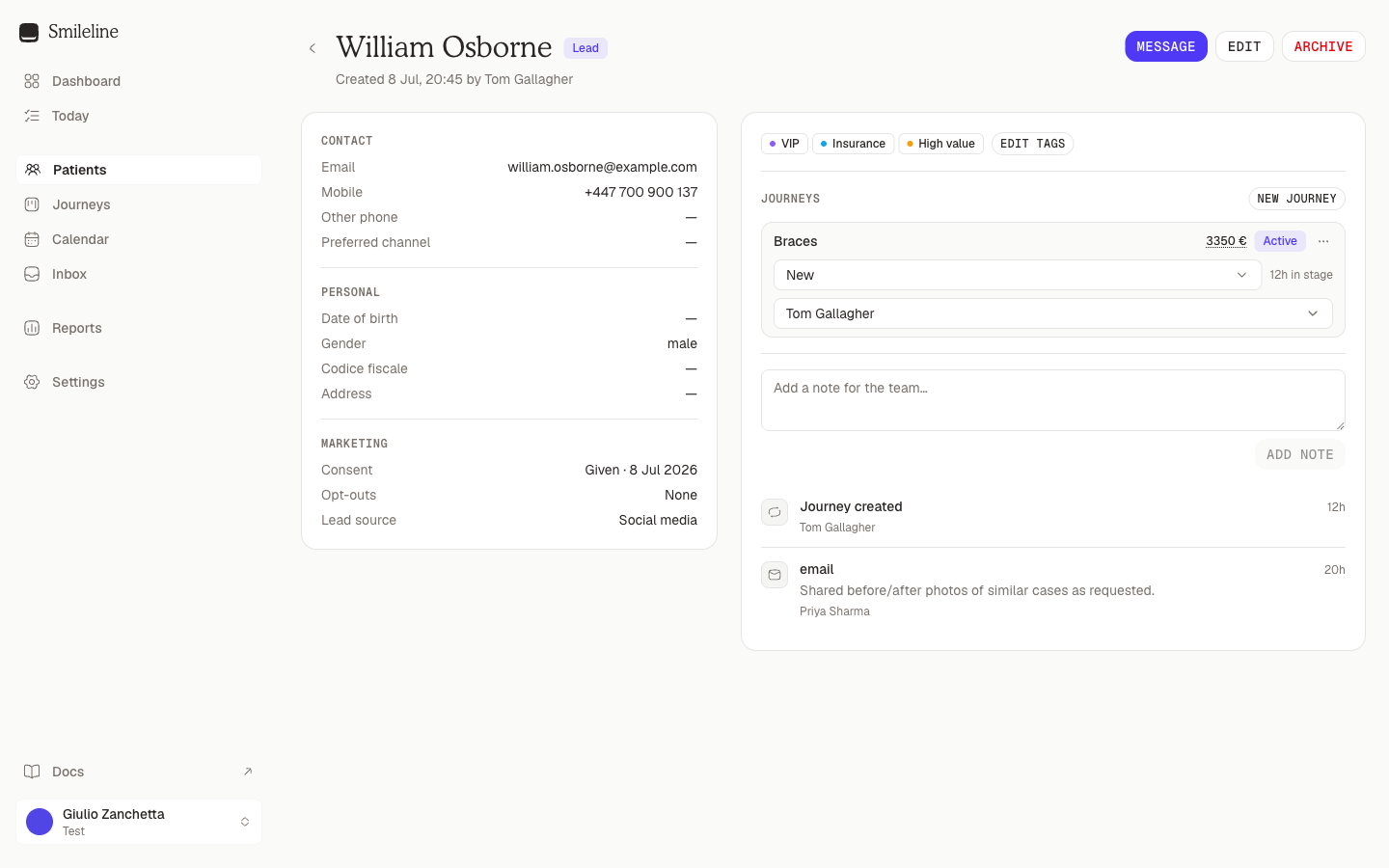
Header
The header shows the patient's name, status badge, and when (and by whom) the record was created. From here you can:
- CRM | Clinical — the workspace switch. CRM is this page; Clinical opens the same patient's clinical record — the tabbed record of the clinical workspace (clinical roles and the front desk; see Clinical chart). The switch appears only for members who hold both workspaces and haven't hidden one, and never on a merged record.
- Export (the download icon) — download everything the practice holds about the patient as a JSON file, for a request to see their data (owners and managers only). See Exporting a patient's data.
- Message — start a conversation with the patient in the Inbox.
- Archive — remove the patient from lists and queues (owners and managers only; the record and its history are kept). Archiving a Lead with fewer contact attempts than the practice's minimum asks twice: see Archiving a lead you have barely called.
- Merge — combine this record with a duplicate of the same person, such as a form lead and a call from another number (anyone whose role can edit patients). See Merging duplicate records.
- Erase — erase the patient from Smileline for good, when they ask the practice to (the practice owner only). See Erasing a patient.
If the record carries a medical alert, it appears as a banner right under the header — you can't miss it.
Archiving a lead you have barely called
Archiving takes a lead out of every list and queue, so it follows the same rule as giving up on a lead in Today. When the record's status is Lead and fewer contact attempts are logged across its journeys than the practice's tries before giving up — nine unless changed in Settings → Not-proceeding reasons — Archive opens a warning that names the count:
- Keep the lead closes the dialog and changes nothing.
- Archive anyway turns the same dialog into a second step that asks why. Write a reason and click Archive; the button stays disabled until the reason is written. The reason is saved on the timeline as Patient archived. Back returns to the warning.
Enquiries, patients, and leads that have reached the minimum keep the single confirmation. The count is the one Today shows: every outcome recorded on the lead's enquiries, AI calls included.
Exporting a patient's data
When a patient asks for a copy of the data the practice holds about them, click Export (the download icon) in the header. Smileline downloads one JSON file with:
- the patient's details, calls, voicemails, call recordings and transcripts, what Call AI wrote about their calls and the suggestions shown during them — never the staff coaching;
- their whole clinical record: treatments, findings, notes (drafts, addenda and corrections included, signed notes as they were signed), periodontal exams with every earlier version, prescriptions, referrals, lab cases, treatment plans with each presentation, acceptance and decline in full (the plan as it was shown or signed: its treatments, fees and what the patient decided, even after the plan was changed), recalls, the forms and medical history they filled in, specialist episodes, the devices placed and the details of their images;
- a list of their documents and images: the kind, title, dates, size and SHA-256 fingerprint of each file.
Nothing is left out because it was corrected. Every entry says where it stands: current, corrected (a later entry replaced it, and names it), entered in error, or voided.
Recordings and documents come as download links that stop working after 15 minutes, so download the files as soon as you have exported. A document marked entered in error has no link, because it may be another person's, filed on this record by mistake, and neither has one a family account holds, which names other people too: check those on the record before handing them over.
The export is written to the audit log as an export and a read of the clinical record; the links are not. Only owners and managers can export, and a patient who has been erased, or is being erased, can't be exported.
Merging duplicate records
The same person sometimes reaches the practice twice. They fill in a form on your website, then call from a different number, and the call becomes a separate Unknown caller record. Merge the two records so their whole history sits on one record and only one journey keeps chasing them.
Merge sits in the header of the full record, not in the list's side panel, for anyone whose role can edit patients. It never appears on a merged record.
Merging can't be undone. Check you have the right two records before you click Merge records.
Merge two records
What moves to the record you keep
- Journeys, calls, voicemails and transcripts, conversations and messages, tasks, activity, attribution (how they found you), marketing consent and tags. A marketing opt-out on either record applies to the kept record.
- Contact details fill gaps only. The kept record's own details stay; an empty field is filled from the other record, and a kept Unknown caller takes the other record's name. The other record's mobile becomes the kept record's Other phone when that is empty.
- A detail the kept record has no room for, such as a second email address, stays on the merged-away record. The dialog lists these details before you confirm.
- The occupation, the GP and the clinician preference fill gaps the same way. A GP the practice has since archived is still taken over.
- The emergency contact moves as a whole — name, relationship and phone together — and only when the kept record has none at all, so a name from one record is never paired with a phone from the other.
- The other record's kept uploads appear on the kept record's Documents tab, and filing one files it to the kept record.
- Today keeps one New · Call now card for the person.
Journeys on the same board
When both records have an open journey on the same board, the dialog suggests folding them into one, ticked by default. The journey further along stays; at the same stage, the kept record's journey stays. The other journey is closed as a duplicate:
- its automations stop and its open tasks are cancelled;
- ad conversions still waiting to be sent for it are skipped;
- it is never counted as not proceeding or junk.
Untick a pair to keep both journeys open. A journey on a board only one record uses moves across as it is.
For example, a form lead sitting in Contacted and an Unknown caller whose journey is in Consultation booked: the booked journey stays, and the form's journey closes as a duplicate, so its automations and call tasks stop chasing someone who has already booked.
When records can't be merged
Merging is for CRM records. Smileline refuses when the record being merged away has:
- clinical records, such as notes, charts, treatment plans, episodes, documents or completed patient forms;
- payments, invoices, deposits, a membership or a payment plan;
- insurance or NHS details;
- a link to your practice management software, or a patient number such as an NHS number;
- a place on the waitlist.
It also refuses when either record has family links, such as a parent or guardian, when their referral records clash (for example, one referred the other), or when either record is under a legal hold or being erased.
If only one of the two records has clinical or billing history, keep that one: these checks apply to the record being merged away. The dialog lists every reason and Merge records stays disabled.
Some reasons clear by themselves: a call with either person is in progress, a recent call is still being processed, or an ad conversion is being sent. Wait a minute and click Check again.
If someone changes either record while the dialog is open, Merge records reloads the comparison instead of merging; check it again and merge.
After the merge
- The merged-away record stays readable. Its header says it was merged into another patient, with a link to the record you kept, and nothing on it can be changed. In the mobile app, opening it takes you straight to the record you kept.
- Later calls and forms are recognised by the kept record's email, mobile or Other phone (an Other phone only when no other patient has that number). So when the other record's mobile became the kept record's Other phone, a later call from it lands on the kept record. A detail that wasn't kept, such as a second email address, isn't recognised: a form sent from it creates a new lead.
Erasing a patient
When someone asks the practice to erase their data, the practice owner can erase them from Smileline. Erasing is permanent and can't be undone. A patient with clinical or payment records can be erased too: those records stay, under a restricted identity only the owner can open (see What erasing keeps).
Only the owner sees Erase, and Smileline refuses an erase request from anyone else. It sits in the header of the full record, not in the list's side panel, and never on a merged record.
Erasing is switched on in an upcoming release. Until then, Erase does not appear on the record.
Erase a patient
Open the patient's full record and click Erase.
Read what will be erased, then check the Name and Date of birth in the dialog against the person's request. A patient without one reads No date of birth on file.
Tick I've checked the name and date of birth — this is the right person. Until you do, the erase button stays disabled.
Click the button, which carries the patient's name: Erase Jane Doe.
From that moment the patient is gone for your team: they appear in no list, search, diary, inbox, queue, call log or report, and a link to their record goes back to the patients list. Nothing new can be added to them, and Smileline sends them nothing more. A new message or call from their number or address arrives as a new contact.
What erasing removes
Smileline removes, step by step:
- the patient's record and contact details;
- their enquiries and journeys, with their stage history;
- their messages, and the conversations that were only theirs — a message about another patient, and a conversation another patient still needs, are kept;
- their calls, call recordings, voicemails, transcripts and AI call records;
- their tasks, notes and timeline;
- their consent and marketing-preference history;
- their form and lead-ad submissions, waitlist requests, referrals, review requests, sequences and tags;
- their form links that were never used, with any answers they sent through them that still wait in the review queue;
- their codice fiscale, NHS number and any previous system's number, and NHS details that hold only their ethnicity (an exemption, a remission or the FP17 consent is a clinical record);
- their occupation, their GP, their emergency contact and their clinician preference — even when clinical records are kept, as these clear with the contact details;
- their kept uploads, whether still waiting or already settled, with the files themselves — from the moment you erase, they're gone from the Documents tab and the review queue;
- a parent, guardian or attorney recorded only by name on their Details › Family, unless another patient's family also names them.
Entries about them in the activity log lose their name and no longer appear. Outbound webhook deliveries about them keep only a receipt — the event, the endpoint, the status, the attempts and the times — without the content or the receiver's response. A delivery about them that hasn't gone yet is never sent, and none can be replayed. Stored files — call recordings, attachments and uploads — are removed separately, after the records, and the dialog shows them on a line of their own.
Smileline keeps only the bare link to the patient in your practice software and the reference an earlier import gave them, without their details, so that neither a sync nor importing an old file again brings them back.
What erasing keeps
The practice must keep clinical and payment records for years, so erasing doesn't delete them. When the patient has any — notes, charting, treatment plans, prescriptions, forms, documents, invoices, payments, memberships, payment plans or insurance and NHS claims — the erasure keeps them under a restricted identity and erases the rest:
- The records stay as they were, together with the identity they belong to, such as the patient's name, date of birth and postal address. Their email address and phone numbers are cleared, as for any erasure.
- Nobody in the team sees them any more: the patient is gone from every list, search and record, as for any erasure. Only the owner can open what was kept, with Download kept record. Practice archives include it too, and they are the only other way to reach it.
- Past appointments stay as attendance history. A message that a kept record still points to stays with its content removed.
- Drafts are erased, not kept: a note nobody completed, and a treatment plan still in draft that was never shown to the patient, unless another record refers to it.
- When something else still needs the contact they were reached at, such as a conversation with another patient's messages or another patient's parent, guardian or payer relationship, the contact stays with no name or address, and nothing can be sent to it.
- The patient's account, and any family account they paid for, is renamed Erased patient, and its money stays in the practice's totals. Wherever else the patient still appears, such as a payment in a till session or as the policyholder on another patient's insurance, they show as Erased patient.
- Insurers, NHS pay schedules and Sistema TS can still send work about the kept claims and invoices. A payment that matches is recorded as usual; anything that would otherwise be a task waits for the owner in the review queue, naming no one, and a pay schedule shows the line's amount without its claim reference.
- Their kept payments can still be refunded. On a family account, another member's Account lists them as Details withheld, each with its Refund icon, and the refund is recorded as usual. Nothing new can be charged to them or paid by them.
- A form or plan they signed for another patient as a parent, guardian or attorney stays on that patient's record, with their relationship on its Details › Family. There they show as Erased patient with no link to them: the signer of the form or plan reads, for example, Signed by Erased patient (Parent), and their signature image no longer opens. They are no longer offered under Who is signing?, and their row on the Family card can't be changed or ended. This holds too when the row names them through their contact details rather than as a patient, even contact details they share with someone else.
- The records are kept until a date Smileline works out from their dates and the record-keeping rules of the country each was made in, shown on the erasure as Kept until. A record added later, such as a claim response that arrives afterwards, only ever moves that date later; if it was made at a location in a country Smileline has no record-keeping rule for yet, the erasure says so, and you contact Smileline support. For now nothing is deleted automatically on that date, while Smileline confirms how long each kind of record must be kept.
When Smileline can't erase yet
If something must be dealt with first, nothing is erased and the dialog says what to do:
| The dialog says | What to do |
|---|---|
| Cancel the upcoming appointments | Cancel the patient's upcoming appointments, then erase again. |
| Cancel the open deposit request | Cancel the deposit request that can still be paid, then erase again. |
| Cancel the membership | Cancel the patient's active or lapsed membership under Account › Membership (see Memberships), so that it has an end, then erase again. |
| Charge or waive the remaining membership months | Under Account › Membership, charge or waive each month waiting for review, and use Decide remaining months for the months up to the membership's end (see Ending a membership), then erase again. |
| Cancel the active payment plan | Cancel the payment plan under Account › Payment plans (see Payment plans), then erase again. |
| They're on a call right now | Wait for the call to end. |
| They're under a legal hold | They can be erased once the hold is released. A hold on an earlier record merged into theirs holds them too. |
| They pay for other patients | Change who pays for the other members of their family account first. |
| Someone pays for a family through their record | Change who pays for the family first. |
| End their relationship to another patient | They're recorded as another patient's parent, guardian or attorney. Open that patient's Details › Family, click End on the relationship, then erase again. Once they have signed a form or a plan for that patient, their signature is part of that patient's record: the relationship is then kept with their restricted identity, and the erasure goes ahead. |
Follow the erasure
After you click Erase Jane Doe, the dialog shows how the erasure is going. You can close it at any time: the erasure carries on, closing takes you back to the patients list, and Settings → Practice details → Data retention lists it under Erasure requests.
- In progress — Smileline is working through the steps, shown as Step 3 of 20.
- Waiting — something must finish first, and the erasure carries on by itself once it has: Waiting for a call to end, Waiting for a call to finish processing, Waiting for the phone provider (a call recording is still arriving), Waiting for the phone provider to delete a recording, Paused: legal hold, or Waiting for an update.
- Needs attention — the erasure stopped, and says why. Fix what it names and click Retry: it continues from where it stopped. If something that stops an erasure, such as a new appointment or a legal hold, appears while it runs, click Retry once that is resolved. When a call recording's outcome is unknown, or one of the practice's locations is in a country Smileline has no record-keeping rule for yet, contact Smileline support instead.
- Erased — every record is gone. Smileline confirms it with a message.
- Kept — the patient had records that must be kept: those stay under a restricted identity and the rest is gone. The erasure shows until when and why, such as Kept until 6 Oct 2037 because of the clinical record (or because of the payment record), with Download kept record. Smileline confirms it with a message.
Stored files have their own line: Files: removed, Files: still being removed, or Files: need attention with Retry cleanup. A file under a legal hold can only be removed once the hold is released.
The phone provider keeps its own copy of every call recording. Smileline asks it to delete each one and waits until the provider confirms, showing Waiting for the phone provider to delete a recording. If the provider never confirms, the erasure needs attention: use Try again on that recording in the review queue, then Retry on the erasure.
Download a kept record
A Kept erasure has Download kept record, in the dialog and under Erasure requests. Only the owner can use it, and Smileline refuses anyone else. It opens what the erasure kept:
- the kept identity's Name and Date of birth;
- Records kept — how many rows of each kind were kept, such as clinical notes, invoices or ledger entries;
- Kept documents, each with Open, which opens the file in a new tab.
Download as file saves the whole record as one JSON file named after the request's reference, such as kept-record-1a2b3c4d.json, with every kept row as stored. Smileline records each time you open a kept record. A document's link works for one minute, so after that Smileline fetches a fresh one when you click Open.
The only other way to reach a kept record is a practice archive: archives include kept records, and owners, managers and agency staff can request and download them. Every archive download is recorded.
Copies made before the erasure
Erasing changes Smileline's live records. Copies made earlier are not changed, so the dialog lists every place that may still hold the person, with how long:
- Practice archives made before the erasure still include them. Archives are kept as the practice's record; see Practice archive. When the erasure keeps records, the dialog adds that every archive includes kept records, this one too, and that owners, managers and agency staff can download archives, with every download recorded.
- Patient CSV exports can still be downloaded until the date shown.
- Core Practice Transfer packages can still be downloaded until the date shown.
- Uploaded import files are deleted by the date shown.
- Connected webhook receivers keep the events about the person they already received.
- Submissions still waiting to be processed, such as one held in the review queue, may arrive as a new contact.
- Copies held by providers such as Meta, the ad platforms, Stripe, and the email and phone providers stay with them.
Deleting those copies is a deliberate step of its own:
- delete any export, archive or import file you downloaded and kept;
- erase the person in your practice software and in any connected app;
- ask each provider that holds a copy to delete it, under its own process;
- if the person later arrives again as a new contact from a submission that was waiting, erase that contact too.
Erase them in your practice software too
When the patient came from your practice software, the dialog says so: Also erase Jane Doe in Dentally and in any connected apps. Smileline can't erase them there. Until you do, a change for them from your practice software waits in the review queue instead of bringing them back.
Erasing while the practice is closing
The patients list is closed while a practice is closing, but the owner can still erase a patient. Open Settings → Billing, find the person under Erase a patient by their name, email, phone or date of birth, and click Erase beside them. The same dialog opens, and Erasure requests below it lists every erasure.
The clinical record
Clinical opens the same patient in the clinical workspace as one tabbed record: a header in two rows, then the tabs, each owning the rest of the screen.
The header
The first row says who the patient is and what must not be missed:
- The patient's initials and name, Prefers … when they go by another name, their date of birth with age (years and months for a child), and their number: Chart # in the United States, Patient no. everywhere else.
- The patient's flags: their tags marked Show on the diary, each in its colour (see Vocabularies). You see them when you may see patients.
- Every alert in force today as a coloured pill (red critical, amber warning); click one to open Medical. Dentists, hygienists and nurses read the alert's words, such as Allergy · Penicillin; everyone else, the front desk included, sees only its kind, Allergy. Critical alerts always show. Of the others, the first two show and the rest fold into +2 more, which opens them out.
The second row holds the facts the desk asks about, each opening its tab:
- The patient's dentist and hygienist, as initials on their diary colour (opens Details).
- Their price list as a pill: orange private, teal NHS (opens Details).
- What the patient owes: red when they owe money, green when in credit (opens Account). In the United States the part still expected from the insurer is left out; see Waiting for insurance. While an insurer's part has no estimate yet, it reads Balance: couldn't check instead of an amount, and if the account can't be read at all it says so with Retry.
- Their next appointment from now (opens Appointments), or No upcoming appointments. If it can't be checked, it says so with Retry.
- Note, the patient's pinned note. Click it to read it. If your role can edit patients, Edit changes it in place and Save keeps it; save it empty to remove it. With no note, Pin a note adds one. The pinned note never prints.
- Today's visit, when the patient has an appointment today.
The buttons at the end of the first row:
- Book opens the diary ready to book the patient, and brings you back here; see Booking from a Book button.
- Take £120.00, when the patient owes money and your role takes payments, opens Take a payment with that amount filled in.
- Message starts a conversation with the patient in the Inbox.
- New note, for roles that write clinical notes, opens Notes with a new note ready to write.
- More ▾ holds Add to waitlist, which opens Appointments with the waitlist form, Open in CRM, which opens the same patient in the CRM workspace when your role has it and you haven't hidden it, and Record history for the roles that can open the activity log.
On Chart and Perio the second row folds away so the chart has the room. Show summary opens it again; today's visit stays in view either way.
The tabs
The tabs are Chart, Notes, Perio, Medical, Appointments, Documents, Account and Details. A tab appears only when your role can read something in it, and Perio only for roles that record perio exams. The open tab is part of the page address (?tab=account), so a link lands on it; Documents keeps the address ?tab=orders.
With no tab in the address, the record reopens the tab you last had open for this patient in the same browser tab. Otherwise it opens on:
- Chart for dentists, hygienists and nurses;
- Appointments for owners, managers, agency staff and the front desk;
- the first tab your role can see, for anyone else.
Two more things happen as you move around the record:
- Popup alerts — an alert flagged to show when the record opens pops up for dentists, hygienists and nurses, and only on Chart and Perio. It does so once per browser session, and again when the alert is edited or a new one is raised.
- Unsaved work — switching tabs while a note or a perio exam still has unsaved changes asks you to Stay or Leave first.
Each tab is described on its own page: Clinical chart, Clinical notes, Perio, Forms and recalls (Medical and Appointments), Prescriptions, Lab cases and referrals and Letters (Documents), Account. A file you keep by hand, such as a scanned letter or a signed consent form, is uploaded from Documents with New → Upload a file; see Filed documents.
Details is the clinical side of the profile below: the basic identity (title, names, date of birth with age, gender, Occupation, the codice fiscale in an Italian practice, the chart number and, read-only, a previous system's number), address and contact, preferences (price list, dentist, hygienist, Clinician preference, channel, time, language, location and the channel blocks) and care contacts in four cards. Every field edits in place exactly as on the CRM record; roles without patient-edit permission see plain text. Open in CRM at the top opens the same patient in the CRM workspace when your role has it and you haven't hidden the CRM. The pinned note is edited from the header's Note, and alerts live on Medical; an old free-text medical alert still shows here while it holds something, so you can clear it. Type, tags, journeys, marketing preferences, the activity and the source stay on the CRM record.
Chart numbers
Smileline gives every patient a chart number of its own, counting up through the practice. The header shows it — Chart # in the United States, Patient no. everywhere else — and so does Details. A record is numbered as soon as it becomes a patient, however it gets there: added as a patient, converted from a lead, or brought in by an import. Inactive and deceased records have one too; leads and enquiries don't. A number is kept for good: it never changes, stays with the patient if they are archived, and is never given to anyone else. Patients already on file have been numbered.
A number a previous system gave the patient, brought in by a CSV import, is kept apart from it as Previous system no., read-only on Details. It never takes the place of Smileline's number, and searching for either finds the patient; see Search.
Care contacts
Care contacts on Details holds the patient's GP and who to phone in an emergency.
- GP picks one of the GPs in Professional contacts, shown with their practice. One GP practice is entered once and shared by every patient registered with it. The GP's phone shows below as a link you can call. A GP the practice has archived stays on the patients already registered with it, marked (archived), but isn't offered to anyone new.
- New GP… adds a GP who isn't in the list yet — name, practice, phone, email and address — and makes them this patient's GP in one step. The front desk can do this without managing the directory. Sending the form again after a lost connection never adds the GP twice.
- Emergency contact is one group: a name, how they are related and a phone, saved together with Save. A relationship or a phone needs a name. The phone is kept as the patient's own numbers are, and shows below as a link you can call.
An emergency contact is only someone to phone in an emergency. They never consent for the patient, never pay, never see records and never receive messages, and a call or a form from their number is never taken for the patient. There is no separate permission to tick: giving you the contact is the patient's permission to call them in an emergency.
Clinician preference records who the patient asked to be seen by: No preference, Female clinician, Male clinician or Prefers not to say, and Not recorded until someone asks. It is a recorded request and nothing more: Smileline never guesses it from the patient's gender and never filters or assigns clinicians by it. When you book the patient in the diary, a preference for a female or male clinician shows as a reminder under the clinician, for example Prefers a female clinician.
When the practice syncs with Dentally, the occupation and the emergency contact come across from it; with CareStack, the occupation. As with other details, the practice system's value wins, but an empty value never clears yours. The GP isn't synced.
These details aren't on the CRM record, and editing the CRM record never clears them.
Family
Below the cards, Family lists the parents, guardians and attorneys who may consent for the patient. Each row reads, for example, Mark Doe · Parent, with a green Can consent pill when they may sign for the patient and the date they took the role. Show ended (1) opens the rows that no longer count.
- Add parent or guardian asks who: a patient of the practice (find them by name), or Someone who isn't a patient, by full name. Someone who isn't a patient is kept by name only: they are never added to the patient's contacts or sent messages, apart from a patient portal link or invitation sent to the mobile or email you confirm with them. Then choose Parent, Guardian or Attorney (health decisions), whether they can consent for the patient (on by default; for a parent it means they have parental responsibility), and when it starts: the patient's date of birth for a parent, otherwise today.
- Change corrects a row for the same person, for example a guardian who is really the patient's attorney: the old row ends and the corrected one starts in one step, and the old one stays as history.
- End takes two clicks (End, then Confirm: end Mark Doe). The person stops being offered as a signer at once; a signature already being recorded under them finishes first.
- May receive records (patient portal) lets them open the patient's patient portal; off by default. For a guardian or attorney, Acts for adult: court order or power of attorney seen keeps that access after the patient reaches the age of consent. Rows show Portal access and Acts for adult pills.
- While the portal is on, Allow portal access on a row without it ends the row and starts the same one with portal access, in one step.
Owners, managers, agency staff, the front desk, dentists and hygienists record who may consent; nurses see the card. Who pays for the patient shows here too; see Who pays. Every change is recorded in the activity log against the patient. A parent, guardian or attorney who has been erased stays listed as Erased patient, as a record of who could consent, and their row can't be changed or ended; see What erasing keeps.
Who may sign a form or a plan acceptance follows from these rows and the patient's age; see Who signs.
Patient portal
While the practice's patient portal is on, Patient portal below Family shows who can open the patient's portal: their links, the accounts with access, and invitations waiting. From there you Send portal link, Invite to portal, remove access, re-link an account, sign it out of every device, disable it, and help someone who is locked out (Reset two-factor, Change sign-in email). See Manage access on the record.
It also lists the documents Shared with the patient (Share a document, Stop sharing) and the Plans signed online, with Retry for one that couldn't be finished. See Share documents and Sign plans online.
Who pays
Family also shows who pays for the patient's treatment, from the patient's family account:
- On the patient's record, the payer's row reads, for example, Mark Doe · Pays for Jane · since 5 Oct 2026 · Mark Doe family account, with Change, End, and Undo while the link can still be undone. The payer's other rows, such as Parent, follow it.
- On the payer's record, Pays for lists whom they pay for, with their ages, and Add someone Mark pays for links another patient to them.
- An amber pill asks you to confirm an adult's agreement: Imported — confirm Jane agrees on an adult your practice management system linked, and Now an adult — confirm Mark Doe still pays on a child who has come of age by the rule of their location. Confirm records that they agree once you tick it; nothing moves.
Owners, managers, agency staff and the front desk — the roles that can edit patients and take payments — change who pays; other roles see the rows. Every change is recorded in the activity log against the patient, without naming anyone else.
Link who pays
- Click Add parent or guardian and turn on Pays for Jane's treatment.
- Choose who pays: A patient of the practice (find them by name), Someone in Family (a person already on the card), or Someone who isn't a patient, with their full name and the postal address statements and invoices go to. Someone who isn't a patient is never added to the patient's contacts or sent messages.
- Read the preview. It says whose account becomes the family account — the payer's own account, or a new family account for someone who isn't a patient — and what moves in from the patient's own account, location by location, for example £45.00 owed at High Street, £50.00 credit at Riverside. It warns when some of the patient's charges are not on an invoice: charges left on a closed account can't be invoiced later, so invoice them first if you need invoices for them.
- An adult must agree that the payer pays and sees their treatment on statements: tick it. The tick is for the payer it names — choose someone else, or retype a new payer's name, and it clears for you to ask again. A patient counts as an adult from 18 — 16 in Scotland, 19 in Alabama and Nebraska, 21 in Mississippi — by their location.
- Click Link Mark Doe as who pays.
When a link can't be made, nothing is written and the preview says why in place of the button: the payer is paid for by someone else, or by this patient; the patient pays for others (change who pays for them first); the patient has a payment plan on their own account (cancel it first: what it covers stays owed and moves with them); or a card reader payment for them is still going through. If a balance changes while the preview is open, or someone else changes who pays for the patient, nothing is linked and the preview reads the figures again.
Change who pays
Change on the payer's row opens the same dialog. What was run up while the old payer paid stays on their family account for them to pay, and the patient joins the new payer's account from today. When the patient is the last member of the account of someone who isn't a patient, that account closes: choose who takes over its balance, and anything that comes back to it later — the account the patient moves to, or another patient's account (find them by name).
End who pays
End asks, for example, Stop Mark Doe paying for Jane? The patient gets their own account from today, and what was run up stays on the family account for the payer to pay. When the patient is the last member of the account of someone who isn't a patient, choose who takes it over: the patient's own new account, or another patient's account. Its balance moves there, and so does anything that comes back to it later, such as a refund of the payer's payment.
Undo a mistaken link
Undo shows while a link can still be undone: it closed the patient's own account, and nothing has been charged or paid against it since. It puts things back: the patient gets their own account again from today, every balance the link moved goes back to it once, location by location, and anything that later comes back to their old account — a refund, a reversal, an insurance payment — goes to the patient, not the payer. A family bill the moved credit had paid is unpaid again.
Once something has been charged or paid against the link, use End and ask a manager to correct the balance. Undo isn't offered after a change from another payer (even one that closed that payer's account into the new payer's), for a link made before Smileline kept track of where an account's money goes, or when the patient is the last member of a family account that also holds other people's money or a payment plan (cancel the plan first).
Today's visit
When the patient has an appointment today, by the practice's clock, the header shows it however you opened the record: Today with its time and appointment type, and its status as a coloured pill. If your role can update appointments, the next step sits beside it:
- Mark arrived and Mark in chair record the step straight away.
- Mark done, and No-show until the patient is in the chair, can't be undone, so each takes two clicks. The first turns the button into Confirm: Jane Doe done (or no-show); only the second records it. Moving away from the button puts it back.
With more than one visit today, the header shows the one you opened the record from in the diary, otherwise the first one not yet done. If someone changed the appointment in the meantime, nothing is recorded: Smileline tells you and shows the visit as it is now. If today's visits can't be checked, the header says Today's visit: couldn't check with Retry.
Record history
More ▾ → Record history opens a panel beside the record, headed with the patient's name and date of birth, listing everything the activity log holds about this patient, newest first: who did what, and when — someone opening the clinical record, a visit booked or moved, a payment, a document filed, a call's transcript or Call AI summary read or retried. A row with field changes opens with the arrow beside it. Load more shows the next page until there are no more.
It shows for owners, managers and agency staff, the roles that can open the activity log. A patient with nothing recorded reads No recorded activity yet; if the history can't be loaded, the panel says so with Retry. A change made to many patients at once, such as a bulk update from the patients list, is one row in the activity log and is not listed under each patient.
Profile
The left card groups the stored details:
- Record — the patient's status, and which location they belong to when the practice has more than one.
- Contact — first, last and preferred name, email, mobile, other phone, and the preferred contact channel.
- Personal — date of birth, gender, address, and any medical alert; in an Italian practice also the codice fiscale and whether the patient objects to Sistema TS reporting.
- Marketing — current SMS, email and WhatsApp marketing preferences and their evidence source, the global channel blocks, and the lead source. Team members with patient-edit permission can record a new preference event here.
- Source — the arrival record, read-only, for patients captured by a form, the widget, booking, a lead ad or a tracked call: channel, captured source, capture form, when it arrived, affiliate, landing URL and referrer, then every UTM (source, medium, campaign, term, content, campaign ID, source platform, creative format, marketing tactic, ad name), the ad hierarchy (ad campaign, ad group, ad, placement, network, keyword, match type, device), every click ID by its parameter name —
gclid,gbraid,wbraid,fbclid,fbp,msclkid,ttclid,li_fat_id,twclid,epik,sc_click_id,rdt_cid,opprefand the long tail — and the GA client and session IDs. Only fields that arrived are shown. Every field carries an icon beside its label, and channel, source and medium show the platform's own mark, so a ChatGPT Ads touch reads as ChatGPT at a glance. When a newer touch exists the two sit in separate boxes, First touch (how they first found you) and Last touch (what brought them back most recently), each headed with its channel and how long ago it arrived. Patients created by hand have no touch, so the group does not appear. See Attribution. A patient who came from a Meta, Google Ads or TikTok lead form also shows what their newest form answered, above the source: every question with its answer, then the form, campaign, ad set, ad and platform by name — with Show all N answers when the form was long, and the answers loading by themselves when the form was too long to preview. - Notes — the free-text note from the patient's profile.
Editing a field
Every field edits in place. Hover a row and it underlines with a pencil beside it; click anywhere on the value — not just the pencil — to open the editor for that field, with the right control for what it holds: a date picker for the date of birth, a dropdown for status, gender, preferred channel, lead source and location, switches for the channel blocks, and a text box for notes and the medical alert.
Press Enter to save, Escape to discard. Clicking away also saves. Notes and the medical alert take multiple lines, so those save with ⌘/Ctrl + Enter. The address opens all five parts — address lines, city, province and postal code — together and saves them in one go.
Each field saves on its own, so two people editing different fields no longer overwrite each other.
A patient must keep at least an email or a mobile number, so Smileline blocks clearing whichever one is the last way to reach them. Type can only be changed while the record is active — use Archive to archive it.
Without patient-edit permission the rows are plain text, with no pencil and nothing to click.
Marketing permission is evaluated per channel. See Marketing consent for legal-basis, practice-policy and unsubscribe behavior.
Codice fiscale
An Italian practice records each patient's Codice fiscale here, on Details in the clinical record, and in Today's work panel. Smileline saves it in capital letters without spaces, however it was typed, and it must then be 16 letters and digits. A code belongs to one patient at a time: saving a code another patient already has is refused, and the message says so. Practices in other countries don't see the field.
Objects to Sistema TS reporting records that the patient has exercised their right to object to their expenses being reported with their codice fiscale. While it is on, the invoice dialog proposes The patient objects when you issue the patient an invoice. Changing it, or the codice fiscale, later never changes an invoice that has already been issued.
Practice management system actions
When the patient's location is covered by an active PMS connection, the provider button in the header lets staff link the CRM record to their PMS patient and book against the provider diary. Booking needs that link.
Link to an existing patient first asks the provider itself for anyone with this patient's email or mobile number and lists them with their date of birth and postcode — families share a phone, so you choose the right person; nothing is linked for you. Below that you can still search the recently synced records by name.
With Dentally, None of these — create in Dentally opens the chart there instead. Dentally will not take a patient without a title, date of birth, sex, first address line and postcode, so the dialog asks for whichever of those the record lacks and saves them to the patient here too. The sex is the one exception: Dentally files a chart as male or female only, so that answer goes to Dentally and never changes the gender recorded in Smileline. The chart is filed under the site's default payment plan, with ethnicity recorded as "patient declined"; a site with no default payment plan in Dentally has to be given one there first.
A chart is only ever created once. If Dentally does not confirm the create, Smileline does not try again by itself: open the dialog a minute later — if the chart is there it is picked up, and if it is not, Create anyway is your decision after checking Dentally.
PMS appointment creation is asynchronous. Smileline first saves a pending appointment and a durable operation, then asks the provider to create it. The dialog follows that operation until the provider confirms or rejects it. If a network result is ambiguous, Smileline looks up the immutable appointment UID and never repeats the create request; the booking stays pending until it is reconciled or marked for manual review.
Every staff, online and PMS appointment uses the same practitioner and operatory reservation boundary. A normal staff booking or reschedule that overlaps either resource returns a conflict instead of double-booking it. An owner or manager may deliberately overbook only by supplying a reason; the extra capacity slot, actor and reason are retained. A provider-authoritative PMS collision is imported as Review required rather than silently accepted or discarded, and Smileline creates a due task in Today so staff have a concrete review surface. Each appointment has at most one practitioner and one operatory.
A staff, online or API booking always names its practitioner, and at a site whose location settings say Every appointment here needs an operatory it names the chair too — the save is refused otherwise. An appointment that arrives from the PMS, a CSV import or a practice transfer without one is kept and shown as Practitioner unassigned or Operatory unassigned until someone assigns the missing participant; it never has to be re-entered.
PMS updates may move an appointment forward through its normal milestones, even when an intermediate update arrived late. Smileline does not silently move an appointment backwards or replace a completed, cancelled or no-show outcome with a different outcome. That provider row opens a correction under Settings → Integrations instead of being applied automatically. Reminders stop at the provider boundary while the two facts disagree. An appointment editor can keep the local fact or apply the reviewed PMS projection; accepting it creates an urgent task to inspect payment, messaging and other effects that may already have happened.
Treatment plans, invoices and payments synced from the practice software are recorded in the patient's own ledger and appear under the provider's financials on the patient record: total charged, total paid and the balance, with each issued invoice and its lines. Open treatment plans appear first; click Show N completed treatment plans to reveal completed plans. Each plan is a summary of its name, the provider's own status, its provider total and when it last changed. Smileline shows up to 50 plan summaries per patient and does not expose treatment-plan line items.
These financial records use the practice's fixed accounting currency: USD for the United States, GBP for the United Kingdom, and EUR for every other currently supported country. If a provider supplies an explicit currency, Smileline accepts the financial row only when it matches that fixed currency.
See PMS integrations for connection health, site mapping and automatic polling.
Tags
Tags sit at the top of the right card. Click Add tags (or Edit tags once some are applied) and tick or untick tags in the list. Changes save immediately. Tags are created and managed in Settings.
Journeys
The Journeys panel lists the patient's treatment journeys — one per treatment they've enquired about. For each journey you can see and change:
- the Stage on its board — the journey's open stages show as a row of dots, ticked up to where it stands; click a dot to move the journey there (going ahead and not proceeding are outcomes: record them with Log outcome). The consultation-booked and consultation-attended dots record what happened instead of only moving the lead, exactly as on the board: booked opens the lead's next step on the booked step, attended answers its visit's attendance. In the inbox's patient panel those two dots offer Open the full record instead. Failed to Attend shows only while the lead is in it: a missed consultation moves it there when you answer its attendance check No-show or mark the appointment No-show in the Calendar, or drag the card on Journeys,
- the Owner (the team member responsible), via the dropdown,
- the value — the price agreed once there is one, else the estimate — click the amount to edit it,
- the status: a journey that is going ahead or not proceeding shows Reopen in the actions menu, beside Mark as junk….
An active journey shows Stale when it has remained in the current stage for at least that stage's configured Rotten after (days) period. A future snooze suppresses the badge until the journey wakes; journeys that are going ahead, not proceeding or archived don't show it.
Click the treatment name to jump to the journey's board, or click New journey to start tracking a new treatment interest for this patient. See Move, close, and reopen for what each status change does.
Work a lead from its journey
Every active journey shows its next step under the owner: the lead's next task and when it is due, such as Next: Call Paul Wilson about Dental Implants · due 14:00 today, or No call scheduled when nothing is planned. Click Log outcome to record what happened, with the same steps as Today: whether you reached them, then Booked, Going ahead (once the consultation has happened), Not proceeding, or the next reminder. You can also send them a message and carry on. One journey's steps are open at a time, and Close puts them away without saving. When you open a record, the newest journey's steps are already open, unless that lead is going ahead, not proceeding, or has reached its booked stage.
A lead booked without a date — older versions of the mobile app could record one — says No visit date — booking messages start when a date is added, with a button to book the date: its booking messages wait for it.
You can work a lead even when nothing is scheduled for it. Only what you choose ends up in Today: the reminder you set appears on its day, and a booked consultation brings its attendance question on the day of the visit. Recording an outcome here never adds the lead to Today on its own.
Each outcome shows Undo for a few seconds, as on Today. Undoing takes the outcome back, and a lead that had nothing scheduled is left with nothing scheduled again. If a teammate is working the same lead on Today, or it changed while you were recording, Smileline says so and reloads the record. What you entered stays, so you can click Done again, unless the lead was closed or given a task in the meantime.
If Call AI analysed their calls, the steps show the call brief under their number: what they need, what is in the way and what wins the booking at a glance, and on click the recap and what to say next. It is the same brief as in Today.
The next step and Log outcome appear only for roles that work leads: dentists, hygienists and nurses don't see them.
Activity
Activity is the patient's full history: notes, calls, messages across every channel, form submissions, stage moves, outcomes, tasks and appointment events.
Entries run down a line, newest first, grouped under day headings: Today, Yesterday, then the date, with the year added when it isn't this year. Anything still ahead, such as a follow-up reminder, sits at the top under Upcoming and shows its date and time. Every other entry shows the exact time it happened.
Each entry says what happened and who did it:
- What happened is the bold first line, such as We spoke, No answer, Moved to Consultation booked or SMS to patient.
- Who did it is the last line: the teammate's name and profile picture, or AI, Automation, System, Patient or Integration when it wasn't someone on your team. Some entries by a teammate who has since left the practice read Staff member.
A message entry also shows a preview of the message. When the preview is cut short, Read more opens the whole message in place, for roles that can read conversations, and Show less folds it back. A recorded call or voicemail has a player for its recording.
A call that Call AI analysed also shows its outcome, such as Booked or Not booked, and a short summary, so you can see how it went without opening it; while the analysis is still being written, a grey line holds its place. If you can make calls, Transcript under a call opens it in a panel with the full analysis, the recording and the transcript — click a line of a live transcript to play the recording from that moment.
What came in
A Journey created entry has a View details link when Smileline recorded how that journey arrived, such as a form, a call, an ad lead form or an integration. It opens what arrived: the submitted answers, the form or integration it came through, when it was received, the landing page and referrer, the campaign tags (UTMs), and click IDs such as gclid. For a lead that came through a website form or a custom integration, owners, managers and agency staff (the roles that can open a form's deliveries) also see What arrived (raw data, for support): the submission exactly as it was received, every field included, the same data as the form's Deliveries tab in Settings → Website. A journey with no recorded arrival has no link, nor does an archived one.
Outcomes
An outcome recorded in Today is a single entry, however much it changed. It starts with We spoke, No answer, Sent them a message or Marked as not proceeding, or Consultation outcome for an attendance question. Below that are the options you picked, coloured by outcome: how you reached them, such as via Telephone, and what happened, such as They booked a consultation or They're going ahead with treatment. Then come the details it recorded, one per line:
- Moved to the journey's new stage.
- Consultation: the date and time booked.
- Reminder: the channel, when it's due and who it's assigned to.
- Reason: why the lead isn't proceeding.
The team note follows, quoted. Some older outcomes show the sentence they were saved with in place of the picks.
An outcome taken back with Undo stays in the history, marked Undone. The undo gets its own entry, Undone: followed by what was undone, for example Undone: We spoke.
Adding a note
Type into Add a note for the team… at the top of Activity.
Click Add note. The note appears under Today, with your name on it.
Older entries
Click View older activity at the bottom of the list to show earlier entries on the same page. Keep clicking until you reach the patient's first entry, when the button goes away.