Demo data
Seed your practice with realistic sample records, then remove an unchanged set or archive a modified one safely.
By the end of this page your practice will be full of realistic sample patients, journeys, appointments and conversations, so you can explore without touching real data. You'll also know when Smileline deletes that sample set and when it must archive it to preserve activity history or money records.
Seed demo data
Go to Settings, then Demo data.
Click Seed demo data, then confirm in the dialog. Seeding takes a few seconds.
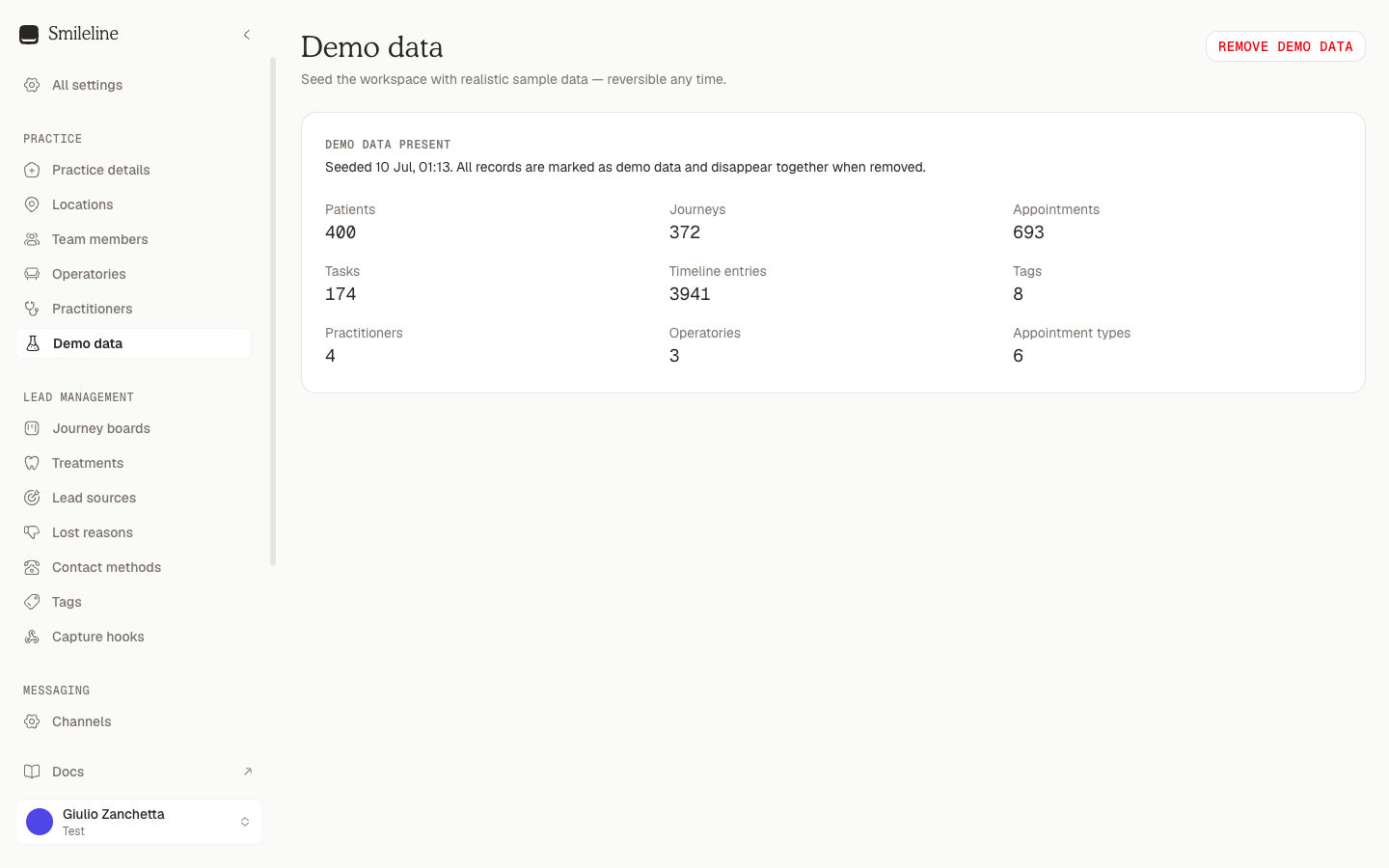
When it finishes, the page shows Demo data present with a count of everything that was created — and every page in the app now has sample volume to explore.
Only owners and managers can seed or remove demo data. Everyone else can view the status but can't change it.
What's included
The seeder builds a believable UK practice:
- 400 sample patients across every status — fresh enquiries, leads mid-journey, active patients, and inactive or archived records — with British names, fictional UK mobile numbers and values in the practice's accounting currency.
- Journeys in every stage of your board, with realistic treatment values.
- Appointments past and future, plus tasks and full patient timelines, so Today, Calendar and Reports all have something to show.
- Inbox conversations across SMS, WhatsApp and email — including threads from unknown senders so you can try linking a conversation to a patient.
- Four fake staff members the sample work is attributed to. They can't log in; they exist so assignee lists and leaderboards look real.
- A demo Dentally connection, unless your practice already has one: two sample patients linked to it, one of them with a paid sample invoice, and three possible matches to review.
- Any missing vocabularies — tags, practitioners, rooms, appointment types — are created too.
Every record is marked as demo data. An unchanged sample set can be removed together. If staff change its activity history, Smileline preserves that history instead of relabelling or deleting it.
Clinical demo data
On the stage cell, a platform admin can add a clinical layer on top of a seeded practice from the same page: click Add clinical demo data. It fills the sample patients with what a real practice record holds:
- Three months of diaries for every demo dentist and hygienist — past visits fulfilled, cancelled or missed, future visits booked and confirmed — around a lunch break, two approved absences and the Christmas closure when it falls in the window.
- Charts: findings, existing restorations and completed treatment on every active patient, with children given a primary dentition.
- Treatment plans presented from planned procedures, with their visits booked into the diary.
- Clinical notes signed by the treating clinician, with addenda.
- Ledger: every completed procedure charged at the practice's Private fees, payments in full, in part or outstanding, deposits on implant cases and invoices — including an overdue debtor.
- Recalls due and overdue, some already booked.
- Perio exams: BPE screens, a full probing chart for periodontal patients and BEWE scores for tooth wear.
- Medical histories, alerts, lab cases, a referral, prescriptions, waitlist requests, recall letters and radiographs.
The top-up runs one step at a time — the page shows Step n of 8 and moves on by itself — and every step is recorded, so a page you close or a request that fails resumes where it stopped instead of writing anything twice. Within a step the data lands patient by patient, so the rest of the practice keeps working while it runs.
Without clinical document storage on the cell, plans stop at presented (acceptance needs a stored signature) and medical-history forms, letters and radiographs are skipped. The page lists what was skipped.
Removing demo data from a practice that ran the clinical top-up always archives rather than deletes: plans are cancelled, recalls paused, waitlist requests withdrawn, lab cases and referrals cancelled, prescriptions voided and planned treatment removed from the chart, while notes, ledger entries, invoices, perio exams and documents stay as evidence. That practice cannot seed the sample set again, which is why the clinical top-up is limited to the stage cell.
Remove demo data
Go to Settings, then Demo data.
Click Remove demo data, then confirm in the dialog.
If the sample activity history is unchanged and the sample set holds no money records, the status returns to No demo data. Your real records are untouched.
If anyone changed the sample activity history, or the sample set holds money records — invoices, charges or payments on a sample patient, including the paid sample invoice that comes with the demo Dentally connection — Smileline archives the whole linked sample set instead of deleting it. Money records are never deleted: they stay exactly as they were. The sample patients, journeys and Inbox threads disappear from active work; demo staff, messaging, PMS connections, resources and automations are disabled. Linked sample referrals and rewards also disappear from active lists and reports, while their recorded history remains intact. The retained records stay explicitly marked as sample data, and that practice cannot seed or remove the sample set again. The page reports Modified sample data archived.