Create your practice
Set up your practice organisation in Smileline and invite your team with the right roles.
By the end of this page your practice will exist in Smileline, its country, service region and accounting currency will be locked, and your colleagues can be invited with the right roles. GBP and USD practices can also start the free trial; EUR subscription onboarding remains unavailable until its catalogue is approved.
Choose the practice country
Choose Practice country before entering your account details. Smileline uses the country where the practice operates to select its service region and accounting currency:
- Practices in the United States use the US service region and USD.
- Practices in the United Kingdom use the EU service region and GBP.
- Practices in every other country currently offered in the selector use the EU service region and EUR.
You can click Change country before creating the account. The country cannot be changed after the practice organisation is created.
Check the practice country carefully. It cannot be changed later because it controls where the practice is served, the currency used for existing values, reports and deposits, and the legal country used by provider accounts.
Working as a temp dental nurse or hygienist? You don't create a practice:
sign up, then open your temp area at /pro to join Smileline Staffing.
Once temp work is open in the UK, onboarding links to it: Working as a
temp? Join temp work instead. Once you have joined, signing in with no
practice of your own takes you straight there. See
Working as a temp.
Create the organisation
Right after you create your account, Smileline walks the owner through three setup steps.
Enter the Practice name and optional website. The Financial region shows the country and accounting currency selected during sign-up. When you continue, Smileline creates the practice with its default pipeline, treatments, lead sources, message templates, nurture sequences and appointment reminders, and shows each setup stage as it runs. If you entered a website, Smileline also reads it at the same time. This takes a few seconds.
Enter the first location's contact details, opening hours and IANA timezone. If you entered a website, the phone, email, address, nation or state and opening hours it publishes are already filled in — check them and correct anything that is wrong before continuing. Anything the site does not state is left blank, and a value you have already typed is never replaced. The timezone starts from your practice country's default; US practices choose theirs explicitly here before continuing.
Accept any pending practice agreement. If your practice uses GBP or USD, start the 14-day trial through Stripe; when Stripe confirms it, you land on Today. EUR practices must contact Smileline support and cannot start a trial yet.
You become the practice's Owner automatically. The accounting currency is used throughout the CRM, connected Stripe account and Smileline subscription. The GBP and USD subscription catalogues are approved; EUR subscription Checkout remains unavailable until Smileline confirms EUR pricing.
Setup progress is saved after each step. If you close the tab, cancel Checkout, or return to the Smileline home page, onboarding resumes at the first incomplete step instead of restarting the practice details. An unfinished Checkout can be resumed from Start free trial at any time until Stripe expires the session (24 hours); after that, the next click opens a fresh Checkout.
After Stripe Checkout, Smileline verifies the existing Stripe customer and subscription before offering another Checkout. A delayed or missed webhook is reconciled from Stripe directly; Check again repeats that safe verification and does not create another subscription. If Stripe reports an ambiguous state, setup stops for staff review instead of guessing or charging again.
Switch practice
Open the menu at the bottom of the sidebar and pick another practice. You stay on the page you were on, now showing that practice's data. If you had a record open, such as a patient or an automation, you land on its list instead, since the record belongs to the practice you left. If your role in the new practice can't open the page, or the practice doesn't use it, you go to the nearest page you can open.
Add another practice
Open the menu at the bottom of the sidebar and choose New organization to set up an additional practice on the same account. It walks the same three steps, and the new practice becomes the one you are working in as soon as step 1 completes — the footer links back to the practice you came from if you want to stop partway.
Two things differ from your first practice:
- The 14-day free trial runs once per account. An additional practice is charged when you complete Checkout, and the wizard says so before you pay.
- Each practice keeps its own subscription, add-ons and invoices. Nothing is shared between them except your login.
An additional practice must be in a country served by the region you are signed in to. If it belongs to the other region, sign in there and create it from that side. There is also a limit on how many practices one account can hold; if you reach it, contact Smileline.
Accept the Data Processing Agreement
Before an eligible practice starts its free trial, you'll be asked to tick I accept the Data Processing Agreement on behalf of your practice. This is the contract that authorises Smileline to store and process your patients' data on the practice's behalf.
- The link in the checkbox opens the full document so you can read it first.
- Only the practice Owner can accept it — it binds the practice, not just your account.
- Who accepted, when, and which version are recorded. You can review the record any time in Settings, then Agreements.
If we later publish a new version of an agreement, the owner is asked to accept it on their next visit. The rest of the team keeps working uninterrupted — they just see a small dismissible notice.
A practice set up for you by a Smileline partner skips the trial step: it starts on the free plan, and the first owner to sign in is asked to accept the agreements on their first visit.
Invite your team
Go to Settings, then Team members.
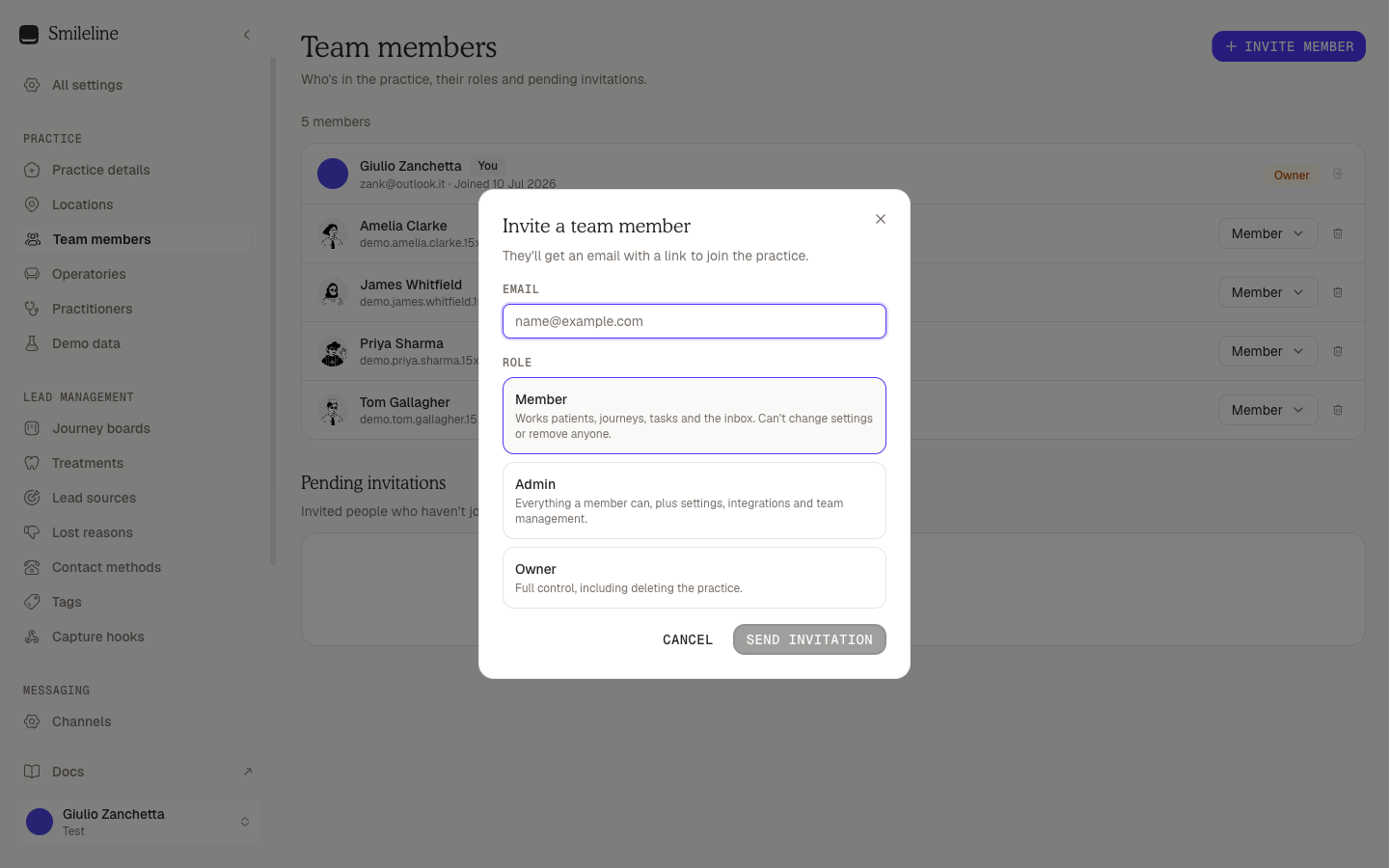
Click Invite member.
Enter their Email and pick a Role (see below).
Click Send invitation. They'll get an email with a link to join the practice. The link opens a Join your practice page that already knows who was invited: someone without an account gets the sign-up form, someone with one gets the sign-in form, and either way the Email field is fixed to the invited address. Once they've signed up or signed in there, they're in the practice — no second step. A person who was already signed in with the invited email is asked to click Accept invitation instead.
Pending invitations appear on the same Team members page until they're accepted. Their email badge shows Email queued, Email sent, or Email needs attention. The badge normally reads Email sent as soon as the page refreshes, because the invitation is sent the moment you click Send invitation. Email queued means it hasn't gone out yet and is retried automatically; if it needs attention, the invitation still exists, so check the address and resend or contact support instead of creating duplicate invitations.
If the email doesn't arrive, click Copy link on the invitation and send the link yourself — by text or chat, for example. It is the same link as in the email.
An invitation lasts 48 hours. An expired one shows Expired and has no Copy link, because its link no longer works: click Resend to renew the same invitation for another 48 hours (the email goes out again), then copy the link.
A practice that a Smileline partner set up is handed over to its owner by invitation. Until that owner joins, one address receives at most three Owner invitation emails for the practice in 24 hours, so a fourth send or Resend is refused until the oldest is a day old. The invitations already sent keep working. Once the owner has joined, and in every other practice, this limit does not apply.
Send the link only to the person you invited. Whoever opens it can create the account for the invited email address and join your practice.
If the invitee is already signed in with a different email, the page tells them which address the invitation was sent to and offers Sign out and continue.
Give each member a location
Once the practice has at least one location, every row on Team members carries a Locations control (the pin icon). Open it, search if the list is long, and tick every site the person works at — a receptionist who covers two practices holds both. The control then reads the site names, or a count once there are several. Owners and managers can change it; everyone else sees the assignment. It is what a ring group set to A location's staff rings, so when someone moves between sites, change it here rather than editing every ring group. See Call routing.
Choose where each member lands
Once the practice's clinical workspace is available, Manage on the row of a member whose role opens both workspaces shows a Workspace field — CRM or Clinical. It sets the page the member lands on after sign-in (Today or the Diary). Under it, Hide Clinical (or Hide CRM) hides the workspace they don't land in from their menu, search and patient records; settings are not affected, and the member can turn it back off from Settings → Account. Anyone can change their own; changing someone else's needs an owner or manager. See Workspaces.
Give each member an extension
Practices with Smileline Voice also see an Extension field on each row:
three digits (100–999) a desk phone dials as * extension # to transfer a
call to that person. Type one, or click Auto for the lowest free number.
Extensions are unique within the practice. See
Desk handsets.
Link a clinician to their profile
A team member who also treats patients can be tied to their practitioner profile: owners and managers pick it from the clinical-profile select (the stethoscope icon) on the member's row, which offers No clinical profile and every profile nobody else is linked to. Pick another profile to move the link, or No clinical profile to clear it. One account links to one practitioner.
Suspend a member's access
Owners and managers can lock a member out of the practice without removing them: click the Suspend access icon on the row and confirm. Only an owner can suspend another owner, and nobody can suspend themselves. In a practice whose agency is still handing it over, the last active Agency member cannot be suspended until the owner joins.
While suspended, the person cannot open this practice on the web, in the mobile app, through an API key or a connected integration; their softphone registration is revoked, and no notification, report, digest, team-chat alert or number-porting email is sent to them for this practice. Everything else stays: their seat, role, sites, clinical profile, assigned work and history. The row shows a Suspended badge, and Restore access on the same row undoes it.
This is a practice-level lock. It does not affect the person's other practices, and it is not the account-wide lock that only Smileline support can apply.
Roles in plain words
- Front desk — works patients, journeys, tasks, the inbox, the clinical diary and payments, and may double-book with a reason, without administrative or deletion authority. The default role for reception and treatment coordinators.
- Telesales — everything the front desk does on the phone and in the inbox: the call list, bookings, deposit requests and the dialler. Marketing (reputation, SEO, lead ads) and practice reporting are not included, so the dashboard and reports are hidden. Their own call and booking figures still show on Today.
- Manager — manages the CRM, settings, integrations and team membership, and can buy Academy courses for the team, but not owner-only billing decisions.
- Analyst — read-only access for reporting and oversight, without inbox or configuration access.
- Owner — full operational and billing control, including owner-role changes. Practice deletion remains unavailable while durable offboarding is being rebuilt.
- Dentist, Hygienist and Nurse — the clinical roles. They work in the clinical workspace only: patient records, the diary, the inbox and their own tasks. Dentists and hygienists also book existing patients. They never see the CRM, marketing or settings. Their own tasks are the ones assigned to them or that they wrote — staff tasks, tasks made from a To do list and due compliance checks — never a lead's follow-up or the CRM's Today queue.
- Agency — the staff of the partner agency that set the practice up or that the practice is linked to. They have a manager's access, can also override diary clashes and receive number-porting alerts, but cannot manage billing, accept the practice's agreements, delete the practice, erase a patient, or run the practice's Academy channel or buy its Academy courses. Nobody can be invited with this role; an owner can switch the linked agency's staff to it, and only an owner can change it. See Partner programme → The Agency role.
Compare roles on Settings → Team members shows the exact grid. Advertising has a third level on top of view and manage — Set campaigns live & change ad spend — held by owners and managers only, so front desk and analysts can view ads and results but can never start or raise spend. See the Ads workspace.
Only owners can invite other owners — managers won't see the Owner option in the invite dialog. The one exception is a practice an agency is still handing over: until its owner joins, the agency's staff can invite that first owner.
Next step
Sign in
Sign in to Smileline with your email and password or with Google or Apple, and reset your password when you forget it.
Setup guide
The checklist in the sidebar that walks a new practice through inviting the team, choosing a practice management path, completing locations, connecting leads, payments, phone numbers, channels and ads.