Overview
The Today page is your daily work queue — who to contact, what's overdue, and new leads the moment they arrive.
Today is where Smileline lands you after every sign-in, and where your front desk spends the day. By the end of this page you'll know how to read the queue, jump between its sections, preview the days ahead, and spot new leads the moment they arrive.
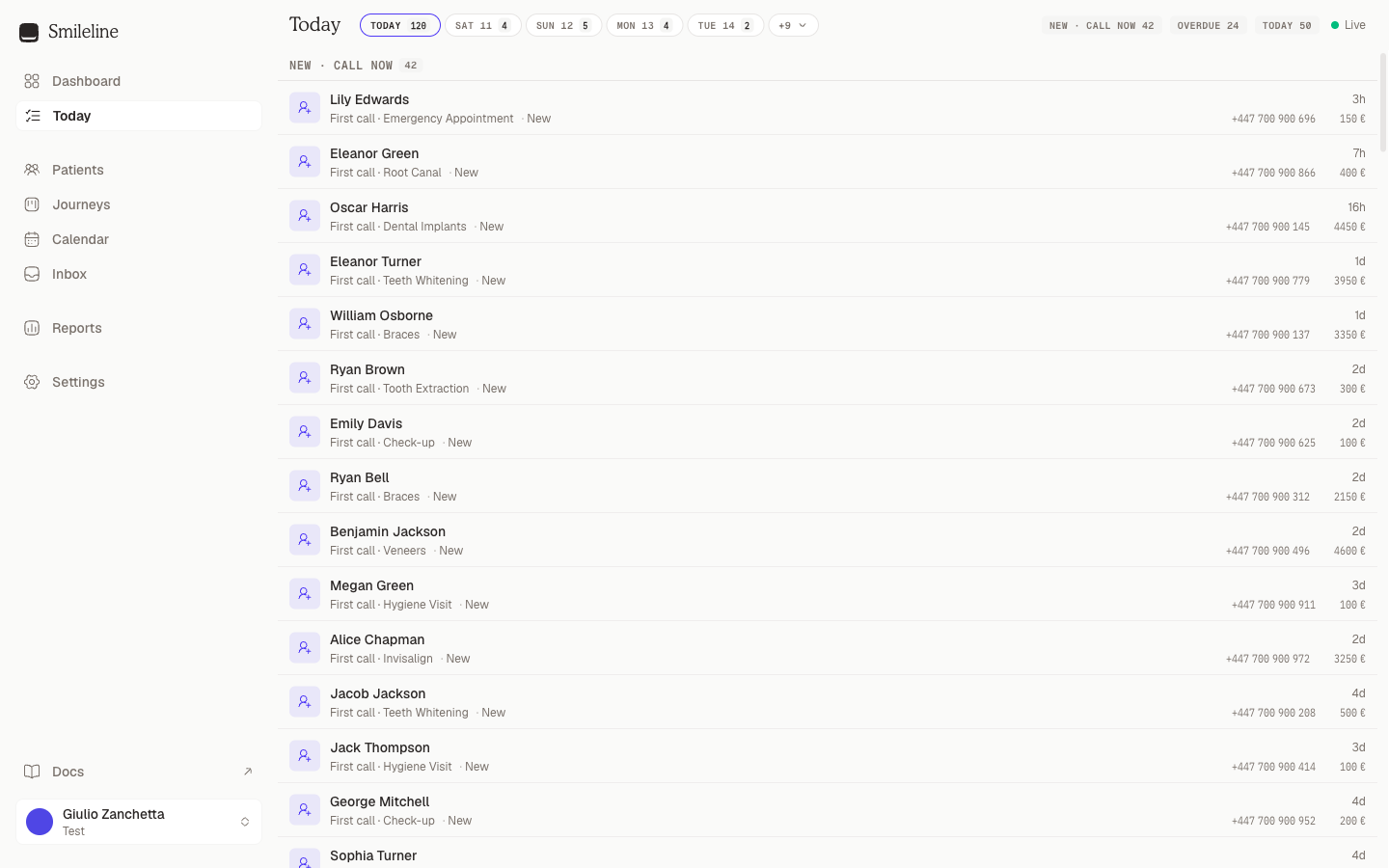
What's in the queue
Large queues keep the same rows, order and controls. You can still search, filter and move through the queue without paging through results; opening a row shows its full work panel.
The queue is sorted for you, top to bottom, into these sections:
- Pinned — leads your team has pinned, whatever their due date. Shown only when something is pinned.
- New · Call now — brand-new leads nobody has contacted yet. People who phoned come first — an Incoming call card with a phone icon, whether the call came through Smileline Voice, a tracking number or a phone system connected as a custom integration — then the newest form leads. Speed matters most here: call these before anything else. While a call to one of your tracking numbers is ringing or in progress, that caller's card comes first; the queue's automatic selection and Auto-call pass it by, and whoever answers the call gets it opened. If you reach someone here another way before recording how it went — you answer their call, or send them a message — their card moves down to Overdue or Today, and the work panel stays on it, until you record the outcome. A lead who left no mobile number reads First contact rather than First call, and its work panel asks how you reached them instead. Someone already waiting here who enquires again moves back to the top as one fresh card, and the bell rings again; there is never a second card for the same person. Another form for the same treatment joins their existing lead rather than opening a second one, and if your team has already contacted them, it shows up as a Call task due now instead (see Returning enquirers). Leads from Meta, Google Ads and TikTok lead forms land here too, one row each, named for their source: New Meta Ads lead · Invisalign, or New Meta Ads lead · General enquiry when the form didn't say which treatment, with the Facebook, Instagram, Google or TikTok mark. They sit by when the person submitted the form, so an imported lead from last month sits below today's and fresh leads stay on top.
- Overdue — tasks past their due date, oldest first.
- Today — tasks due today, plus website enquiries that need triaging.
- Upcoming — tomorrow's follow-ups and undated tasks, collapsed by default. Click the header to expand it.
When there's nothing left, the queue says All clear — new leads land here the moment they arrive. In the rare case a section holds more than one page can carry, it ends with Showing the first N — resolve rows to see more: work or close some rows and the rest appear on the next refresh. The mobile app shows the same notice at the end of its list.
Pinning a lead
Pin a lead to keep it at the top of everyone's queue. Open the lead and click the pin next to the pencil in its header (Pin to top). Every row for that patient moves into Pinned, above New · Call now, for the whole team — a follow-up due next week included. Click it again (Unpin) to send the lead back to its usual section.
A lead stays pinned until someone unpins it. Like any other lead, it leaves the queue once it has no open work — booked, going ahead, not proceeding or archived. Pinning needs permission to edit patients.
Reading a row
Each row is two lines with an icon square on the left:
- The icon tells you the type at a glance: new lead, enquiry, follow-up (call, text, email or WhatsApp) or a plain task. Overdue items are tinted red.
- Line one shows the patient's name and, on the right, how old the lead is or when the task is due. A lead's age counts from when this enquiry arrived, so a returning patient's new enquiry reads minutes old, not the age of their record.
- Leads nobody has contacted warm up as they wait. After an hour their age turns amber and a bar appears down the row's left edge; after four hours the age becomes an amber pill; after a day it turns red; after a week it's a solid red pill. The steps match the buckets in the Speed to lead report, so the colour tells you which bucket the lead lands in if you call it now. This applies to new leads and enquiries; follow-ups and tasks show their due time instead.
- Line two shows what to do, the journey stage and the patient's phone number — click the number to copy it without opening the row — with who the lead belongs to on the right. The name is the lead's owner, or the task's assignee when the lead has no owner; hover it for their full name. It stays on the row while the work panel is open.
- The lead you're on a call with turns green for as long as your call with them lasts — on your computer or your desk phone — so you can always see who is on the line.
The work panel on the right is always open and automatically shows the first item that needs attention — click a row (or press Enter) to switch to a different one. It reads top to bottom in the order a call needs: the patient's summary first — the name and treatment, a medical-alert flag when there is one, and the due time — then the task itself in a card, which is where you record what happened. That card's tint says what kind of work it is: blue for a new lead, amber for a follow-up, green for a booking to confirm and violet for an enquiry to triage. While you're on a call with the lead, the card turns a deeper green, like their row in the queue. When the newest thing on the lead's activity is a note from the team, a Note card follows it, showing the note, how long ago it was left and who wrote it, so the next person to open the lead reads it first; anything newer (a call, a message, an outcome) takes it away again. Once the lead has had a call, the Last call card comes next (described below). Under it sit three cards that open when you want them and stay shut when you don't: Recent activity, with a quick note box and the lead's latest activity (described below), Edit patient details, which holds the journey progress, the patient's details and where the lead came from, and Pitch. Each one summarises itself while it is closed: the last three things that happened, and the lead's value, owner and age. Only filled-in details are shown; the full record is one click away via Open full patient record. Those details edit in place, the same way they do on the patient record — click the date of birth, gender, address, language, preferred channel, codice fiscale (Italian practices), other phone or medical alert to correct it mid-call. In the source block, the lead source is editable; the rest of that block is the arrival record (channel, campaign, capture form, when it was captured) and is never rewritten. Adding a detail the patient does not have yet still happens on the full record. Opening an enquiry shows a triage card instead. It leads with Enquiry: what they actually submitted, their message first and then every other answer the form asked for, so you can read the request before you act on it. (Attribution parameters and the name, email and phone your form mapping already put on the record are left out; the complete body stays in the form's delivery history under Settings → Website; a lead-form enquiry shows every answer on the card, and its receipt stays in the Ads workspace under Lead capture.) Under it, confirm the treatment they're interested in to create a journey: they re-enter the queue as a New · Call now card and the panel stays on them, so you can call or book them in straight away. Or dismiss the enquiry to archive the patient. An enquiry that arrived without a form submission, such as one typed in by hand, shows the card on its own.
A lead-form row shows what the person answered, above everything else in its card: every question with its answer, then the form, campaign, ad set, ad and platform by name. A long form shows its first answers with Show all N answers underneath; a very long or older form loads its answers by itself when the card opens. On a lead-form enquiry the card also has the call row — the number, which dials when you click it, and the round call button — above Confirm treatment interest and Dismiss enquiry; confirming creates the journey, as above.
Last call
Once a lead has had a call, the Last call card sits under the task card (or under the Note card, when a team note is the newest activity) and recaps it:
- when the last call was, and who made or took it, shown with their avatar;
- the result recorded on the card, such as They're thinking about it;
- how the call went — Incoming or Outgoing, then Answered with how long it lasted, Missed, No answer or Voicemail — when your phone system logged the call. Voicemail is a message left for the practice, or an outgoing call that the patient's voicemail picked up;
- the note recorded with the result.
It works for every practice: calls on Smileline Voice or a connected phone system, and results recorded on the card after a call from your own phones. With Call AI, an analysed call also shows its outcome and summary, Say this next time — how to open the next call and what to cover — and any Suggested email still waiting to be sent, with Use and Dismiss. Out of date means the transcript grew after the analysis was written.
Call brief
With Call AI, a lead who has had an analysed call gets a call brief under their number. It reads the lead at a glance in up to three short lines, each with a coloured label:
- Need — the problem they want solved, in their words, such as "Missing 3 lower teeth" — never just the treatment they asked about;
- Blocker — the one thing stopping them booking now, such as "Worried about the cost", or what is still to settle, such as "Partner must agree";
- Win — what is most likely to get them booked: something they told you, such as "Wants it done before June wedding", or something your practice offers that answers the blocker, such as "0% finance over 24 months".
A line appears only once a call has shown it, so a lead who has barely spoken to you may have fewer than three.
Click the brief to open the rest of it across the card, with the recap and what to say next side by side on a wide panel. It stays open while you dial and talk, until you click the brief again, and shows:
- Recap — short points on what you need to know before calling: who spoke to them and what happened, their situation, what they are open to, their availability, any slots they turned down and where it stands now. The teammate who handled that call sits beside the heading with their avatar, and a teammate named in the points shows as a badge with theirs;
- Recording — click Play recording to listen back to the call the brief comes from. It shows while that recording is kept, if your role can play call recordings;
- What to say next — direct points for this call, some depending on what they tell you, such as "If her rota is confirmed: book the next Monday or Tuesday morning".
Call AI rewrites the brief after every analysed call and keeps only what is specific to this lead, never what your team already knows. A blocker is never a reason to give up on a lead. The same brief shows on the patient record when you click Log outcome. Anyone who can open the patient sees it. A lead with no analysed call has no brief, and a lead last analysed before the brief arrived gets one after its next analysed call.
Recent activity
Open Recent activity in the work panel to see what has happened with the lead without leaving the queue. Type into Add a note for the team… and click Add note to leave a note; it appears straight away under Today.
Below the note box sit the lead's five latest entries, laid out the same way as the Activity section of the patient record:
- Entries are grouped under day headings — Today, Yesterday, then the date — and each shows the exact time it happened.
- Anything still ahead, such as the next reminder, sits first under Upcoming with its date and time. It doesn't count towards the five.
- Each entry says what happened and who did it: a teammate's name and profile picture, or AI, Automation, System, Patient or Integration. An outcome is a single entry showing the options you picked.
Click View older activity at the end of the list to see earlier entries. They open right there in the card, so you keep your place in the lead.
Chatting with the patient
The work panel has two tabs: Overview, where you record what happened, and Chat, which holds the patient's conversation — the same WhatsApp, SMS and email thread you'd see in the Inbox. On Chat you reply, switch channels, leave internal notes and use templates exactly as you would in the Inbox, without leaving the queue.
A badge on the Chat tab counts the conversation's unread messages (99+ past ninety-nine); opening the tab marks it as read for the whole team, just like opening it in the Inbox. Queue rows carry the same fact more quietly: a dot beside a lead's name means that patient has messages waiting, so you can see who is owed a reply without opening each row. If nobody has messaged the patient yet, the tab shows an empty thread with the composer ready underneath it, set to Email — switch the channel from the composer's picker if you'd rather text or WhatsApp them. Templates and attachments work as they do in the Inbox; the first message you send starts the thread right there in the panel. Until then, what you type is kept while you stay on the page, and anything you add while that first message is on its way carries over to the new thread as your draft. If the first message seems to fail but its thread appears anyway, press Send again without changing the text: the patient gets it only once. WhatsApp outside a 24-hour window carries approved templates only, exactly as in the Inbox.
The Chat tab appears for roles with Inbox access, and its composer for roles that can send messages. A channel appears in the picker only when it is connected and the patient has a number or address for it. If the Chat tab cannot be shown — typically a tab left open across an app update — only that tab shows the error and its reason, and the rest of the page keeps working; a page refresh clears it.
The sales pitch
Pitch, the last card on Overview, is what to say on this call. Open it and it shows your practice pitch first — the part that's true whatever the treatment — then the pitch written for the treatment on this lead's journey, under its name. It's read-only: nothing in the card changes the patient's record, so you can open it mid-call without losing your place in the outcome card above it.
Change the treatment on the lead and the card follows it. If neither pitch has been written yet, the card says so and offers Write one, which takes you to Settings → Treatments — see Vocabularies for how to write them.
Everyone who can work the queue can read the pitch. Writing one needs settings access.
Counters
The header shows a compact icon and clickable counter for each non-empty bucket — a new-lead icon for New · Call now, a clock for Overdue and a calendar for Today. Hover or focus an icon to see its bucket name, or click it to jump straight to that section of the queue. When something new lands in a bucket, its counter pulses briefly. Pinned leads count under Pinned, not here.
Filtering the queue
Click Mine in the header to see only the items with your name on them — leads you own, plus tasks assigned to you on leads nobody owns. Click it again to see everyone's work.
For anything else, use the search bar in the header to focus the queue on just what you're after. Click it to open the dropdown, or just start typing. Every option carries a count of the items it covers — today's queue plus everything scheduled over the next six weeks, so a client whose next call is on Thursday still turns up:
- Task types — new leads, follow-ups, bookings to confirm, enquiries or plain tasks.
- Treatments, Stages and Owner — built from what's actually in the queue and the weeks ahead. Owner matches the name shown on each row: the lead's owner, or the task's assignee when the lead has no owner. Mine is the same as picking yourself here.
- Clients — type a name, phone number or email and pick the client to see just their items.
- All patients — from the second character you type, the search also looks through every patient in the practice. Anyone it finds with nothing in the queue is listed here: pick them to open their full record — the same one the side sheet on Patients shows, with Overview and Chat — in a large window over the queue. In Smileline Desk, their record opens in Patients instead.
Pick as many options as you like: choices within a group widen the match, groups combine to narrow it — New lead plus Invisalign shows only new Invisalign leads.
Each time you change the filter — Mine included — the first matching lead opens straight away. If nothing matches on the day you're looking at but something does later on, the day bar jumps to the first day with a match and opens it there. Clearing the filter leaves the lead you have open where it is.
Everything you have picked appears as a row of chips at the top of the dropdown, so you can see what's on at a glance. Click a chip's ✕ to drop that one choice without hunting for it back down in its group.
While a filter is on, the search bar shows a badge with the number of active choices, each bucket header reads like 3 of 12, and keyboard navigation and auto-advance move only through matching items. The header counters keep showing your full workload, and the filter sticks while you preview other days. To bring everything back, hover the search bar and click the × that takes the badge's place, click Reset at the end of the chips, or click Clear filter when nothing matches.
Planning ahead with the day bar
Next to the page title sits the day bar: a calendar, then Today, then as many of the next few days by weekday as the header has room for. Each day carries one number — how much work sits on it — and hovering gives you the full date and what that number counts.
The two kinds of number are not comparable, which is why they read differently on hover. Today's is the size of your complete live queue, overdue items included; a future day's counts only the tasks scheduled for that day.
Click a day to preview its queue — useful for eyeballing tomorrow's workload before you leave. Today is the live working view; the other days are read-ahead previews showing only what's due then.
Click the calendar to plan further out. It opens six weeks starting from this week, with the same number under every day, so you can see where the busy days fall before you commit to anything. Click a day to preview it — the calendar closes and takes the place of that day in the bar until you come back to Today.
Days that have already passed are shown for context only: they carry no number and cannot be opened. The queue looks forward, and anything still outstanding from an earlier day is already waiting in Overdue.

Live arrivals
Today updates in real time. When a new lead comes in (from your website form, for example) its row slides into the top of Call now carrying an indigo bar down its left edge, and the bucket counter pulses. The highlight holds for about ten seconds, then fades out on its own, so anything still marked is something that landed while you were looking. No refresh needed.
While live updates are working the header shows nothing. If they drop, a status appears there and the page quietly refreshes itself every minute instead, so you never work from a stale queue. Reconnecting… means Smileline is trying to restore live updates; Updates paused means it has stopped trying, and the next time you switch back to the tab it starts again.
Offline means the connection was refused rather than lost, so waiting will not fix it. Click Reconnect beside the dot to try again. If it comes back offline, the button becomes Reload the page, which usually signs you back in. Reloading would end a call you are on, so during a call the button reads Reload after your call and works again once you hang up.
When Smileline can work out why the connection was refused, the dot names the reason instead of just saying offline:
- Sign-in expired goes straight to Reload the page, because only loading the page again gets you a fresh sign-in.
- Live updates blocked means you are signed in and your account is fine, but the live connection itself was turned away. The two usual reasons are too many Smileline tabs open at once, so close one of the others, or a work network that blocks live connections, which your IT contact would need to allow. Switching away from this tab and back tries again.
- Updates unavailable means the service turned the connection down for a reason neither reconnecting nor reloading changes.
The queue keeps refreshing every minute throughout, so nothing is lost while you decide.
A dropped connection never closes the lead you have open. It stays on screen and a line at the top of the panel tells you it isn't reserved for you at that moment, so a teammate could open the same lead. When the connection returns Smileline reclaims that lead's team lock for you automatically. The only time the panel closes is when a teammate genuinely has the lead — then you're offered the takeover prompt, or moved on to the next lead in the queue.
The same applies when you leave the tab: Smileline releases your lead's lock so it isn't held while you're away, and takes it back when you return.
Moving through leads unusually quickly can also outrun the reservation system for a moment. Live updates keep running and the lead stays open — it simply isn't reserved until the next one you settle on, so a teammate could open it too. Nothing is lost either way: if you both work the same lead, whoever saves second is told the lead moved on and shown the current state.
Review capture warnings
If a capture submission referred to an archived location, treatment, lead source, or another invalid optional reference, or typed a phone number that could not be read, Intake review appears above the queue for roles that can update patients. Smileline keeps the lead, does not apply the unsafe reference, and stores an unreadable number on the patient exactly as typed until someone corrects it.
Open the reason, form, or patient link to correct the underlying record, then click Acknowledge. You can add an optional audited note. Acknowledgement never changes CRM data, so make the correction first. A Contact could not be read row shows the number as typed and a Fix phone button that saves the corrected number on the patient and closes the warning together. See Intake review.
An amber strip — 3 items need review — also appears when inbound data is waiting: a malformed form post, an unrecognised provider event, or a detected website form whose submissions are waiting for its field mapping. Nothing is lost: the strip links to the Review queue, where each stored payload can be retried, resolved or discarded, and a detected form is mapped from Settings → Website.
If anyone at the practice can call, a red Missed badge right after the day chips counts the inbound calls nobody answered and nobody has dealt with since. Click it to open the Missed view of the call log in a window over Today, without leaving the page. Each call has a call button and Dismiss, and you can click a call to see its details and recording. Click Open lead (the person icon) to go to that lead: if they are in Today's queue, the window closes and their lead opens in the work panel; otherwise their patient record opens on top of Today. A missed call stops counting once someone calls that number back, whether or not the caller picks up, or once the same caller gets through. The badge picks this up the next time Today loads. Click the × on the badge to dismiss every missed call it counted at once. This clears them for the whole practice and can't be undone. The badge then checks again. Any missed call that arrived or changed after the badge loaded is not dismissed, and the badge shows it so you can decide.
Adding a lead yourself
Not every lead arrives through a form — someone rings the practice or walks in. Click New lead in the header to log them without leaving the queue.
- Type their Full name. The first word becomes the first name and the rest the surname, so "Mary Ann Smith" is saved as Mary, surname Ann Smith.
- Add an email or mobile number, plus the lead source if you know it.
- If a patient referred them, open Advanced and find the referrer under Referred by a patient?.
- Pick the Treatment they're interested in and they land in its pipeline immediately — a New · Call now card appears at the top of the queue, ready to work. Add an estimated value, or leave it blank to default from the treatment price.
- Not sure what they're after yet? Leave the treatment on Not sure yet (enquiry) and they're saved to the Today bucket for triage instead.
Someone already in Smileline
As you type the name, email or mobile, Already in the CRM? lists the people who match. A mobile number matches only those exact digits, never a number that merely starts the same way.
An email or mobile number can only belong to one lead. If someone already has the one you typed, the dialog names them and Create lead stays off: click Use existing, or correct the detail. The mobile counts however it is written, so 07700 900456 is the same number as +44 7700 900456. Archived records don't count.
Someone with exactly the same full name is only a warning, because two people can share a name. When you click Create lead, the dialog asks whether this is the same person and lists them. Click Use existing to pick them, Create anyway to add the new person, or Back to keep editing.
Click Use existing to work with that person instead of creating a duplicate record. The dialog then shows their journeys: the treatment, when it came in, who handled it and where it stands. From there:
- Click Open lead to open them in the work panel. If nothing of theirs is due today, Today says so and links to their full record; in Smileline Desk, their record opens in Patients instead.
- Click New journey to start another journey for them: pick the treatment, then click Create journey.
Someone with no journeys yet goes straight to the treatment.
The New lead button only appears for roles that can create patients and journeys.
Calling a lead
Every open lead has a call button: a small phone icon beside the mobile number, and a Call button carrying the number itself on the task card. Both do the same thing, and what that is depends on the calling your practice has:
- With Smileline Voice, it rings the lead straight from your browser. Your own device rings first and answers itself, then the lead is dialed. You need calling enabled on this device; if you haven't done that yet, the button tells you. If you chose Call from my desk phone in the calling pill's menu, your desk phone rings instead; lift it to call the lead. If your device can't be reached, the call isn't placed and a message tells you so.
- Without it, it hands the number to your computer or phone to dial, the same as tapping a number anywhere else.
The button disappears while you're on a call, so a second call can't start on top of the first.
Smileline Voice never calls a patient who has asked not to be called — whether they told the AI on a call or your team set the phone opt-out on their record. The call isn't placed and a message tells you why. To call them again, someone with patient-edit permission records a new phone preference on their patient record.
Auto-call the next lead
With Smileline Voice (practices in the United Kingdom and the United States), an Auto-call switch sits in the top bar, before New lead. Turn it on, and every outcome you save opens the next lead and rings it by itself after 3 seconds:
- The call row shows Calling in 3 and a Stop button. Click Stop, undo the outcome, open another lead or switch Auto-call off to cancel it. Click the call button to ring straight away.
- It rings only a call that is due now: a first call, or a Call follow-up. A call-back booked for later, a text, email or WhatsApp reminder, an attendance check, a booking to confirm, an enquiry, a lead without a mobile number or a task someone has retitled opens without ringing — handle it, and the next saved outcome carries on.
- It waits while you are still on the previous call, and cancels if a call comes in. It never rings a lead a teammate has open, and only rings while Today is in front of you.
Auto-call is remembered for you on this computer. The first call is always yours: click the call button to start.
Working alongside teammates
When a colleague opens a lead, its row shows a small lock chip with their name so you don't both call the same person. Today never opens a colleague's lead for you on its own, even straight after the page loads: it moves on to the next free lead instead. If you try to open it anyway, Smileline asks whether you want to take over — and tells your colleague you did. You hold one lead at a time: opening another lead, in any window or in the mobile app, frees the one you were on, and a window you've left in the background takes its lead back only when you return to it.
Keyboard shortcuts
- Down / Up (or j / k) — move to the next or previous lead and open it in the work panel
- Enter — open the highlighted row, for a lead you moved past while a colleague had it open
- Y / N, 1–4 and D — answer the open lead's steps in the work panel from anywhere on the page; they pause while you type in a field or have a dialog or menu open
Next step
When you answer a tracked inbound call, Today opens the journey that received the call’s lead. Another enquiry for the same patient does not replace that card. Automatic selection and Auto-call leave the patient’s cards alone while the call is active.