Quick search
Jump to any patient, page or setting from anywhere in Smileline with one shortcut.
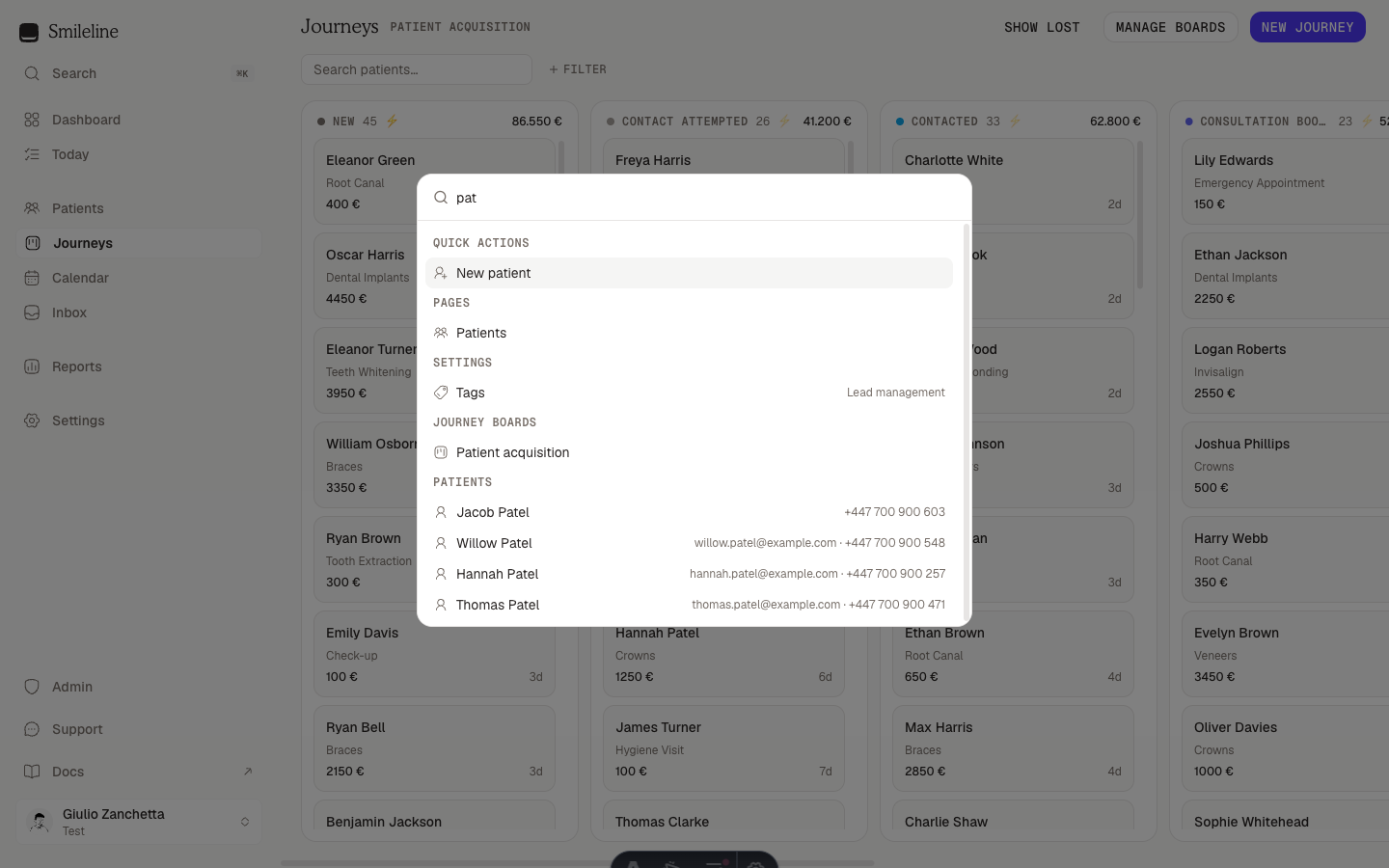
Quick search is the fastest way to move around Smileline. Open it from any page, type a few characters, and jump straight to a patient record, a page, a setting, a journey board or a saved view — or start creating something new without hunting for the button.
Open quick search
- Press ⌘K (Mac) or Ctrl K (Windows), or
- Click Search at the top of the sidebar.
What it searches
| Group | What you get |
|---|---|
| Quick actions | New patient and New journey on every page, plus the page's own action when it has one: New message on the Inbox, New campaign on Campaigns and New post on Social. Selecting one opens the create dialog on the right page. |
| Pages | Every page in the app, including each report. |
| Settings | Every settings page, e.g. "Treatments" or "Team members". |
| Journey boards | Your boards — selecting one opens it on the Journeys page. |
| Saved views | Your saved patient views, applied on the Patients page. |
| Patients | Live results from your patient list. |
Results respect your role: pages, settings and actions you don't have access to never appear.
Settings and reports also match the words people use for them, not just their names. When a result was found that way, the word it matched shows beside the name — "pitch" lists Treatments tagged pitch.
Page-specific actions stay searchable from anywhere: type "campaign" on Today and New campaign still appears, marked with the page it belongs to.
Finding patients
Patient results match on far more than the name. Type any part of a patient's:
- first, last or preferred name,
- email address,
- mobile or other phone number (digits only is fine —
7700 900works), - codice fiscale (Italian practices),
- street address, city or postcode.
Several words narrow the results: every word has to match, so a first name and the start of a surname (philip garf) find Phillip Garforth rather than every Philip.
It also finds a patient by their whole date of birth, read in your practice's order (month first in the US, day first everywhere else), by their chart number, or by the number a previous system gave them, typed exactly as it was imported. See Search for the formats.
The top matches appear as you type, best match first. Each shows the patient's date of birth with their age beside their contact details, so two people with the same name are told apart. Select one to open the patient's record.
A result can carry a tag saying why it matched:
- Date of birth — you searched for a date, and it is this patient's birthday.
- Similar name — the name is close to what you typed but not the same, for example
Jhonsonfinding Mrs Johnson. Check it is the patient you mean before you open it.
Typos are fine
Search is typo-tolerant end to end: pateints still finds the Patients page, and Jhonson still finds Mrs Johnson. You don't need to spell it right — a close attempt is enough.
Very short searches (one or two characters) only match exact fragments — typo tolerance kicks in from three characters, so a stray letter can't flood the list with noise.
Workspaces
Smileline has a CRM workspace and a clinical workspace. Learn which one your role opens, where you land after sign-in, how to switch between them, and how to hide the one you don't use.
Demo data
Seed your practice with realistic sample records, then remove an unchanged set or archive a modified one safely.