AI assist
Draft replies and summarise long conversations with AI, without anything sending on its own.
AI assist gives you two tools inside the composer: a suggested reply and a conversation summary. Both read the recent thread — and the linked patient's name, language and active journeys — so the output fits the conversation. Nothing is ever sent automatically: a suggestion is only ever a draft you review.
Get a suggested reply
Open the conversation, click the sparkles icon under the composer (titled AI assist), and choose Suggest a reply.
The draft fills the composer. An "AI draft" marker appears above it with three links: undo restores whatever you had typed, regenerate asks for a fresh draft, and report sends a note about the draft to the Smileline team (see below).
Edit the draft like any other message, then press Enter or click Send.
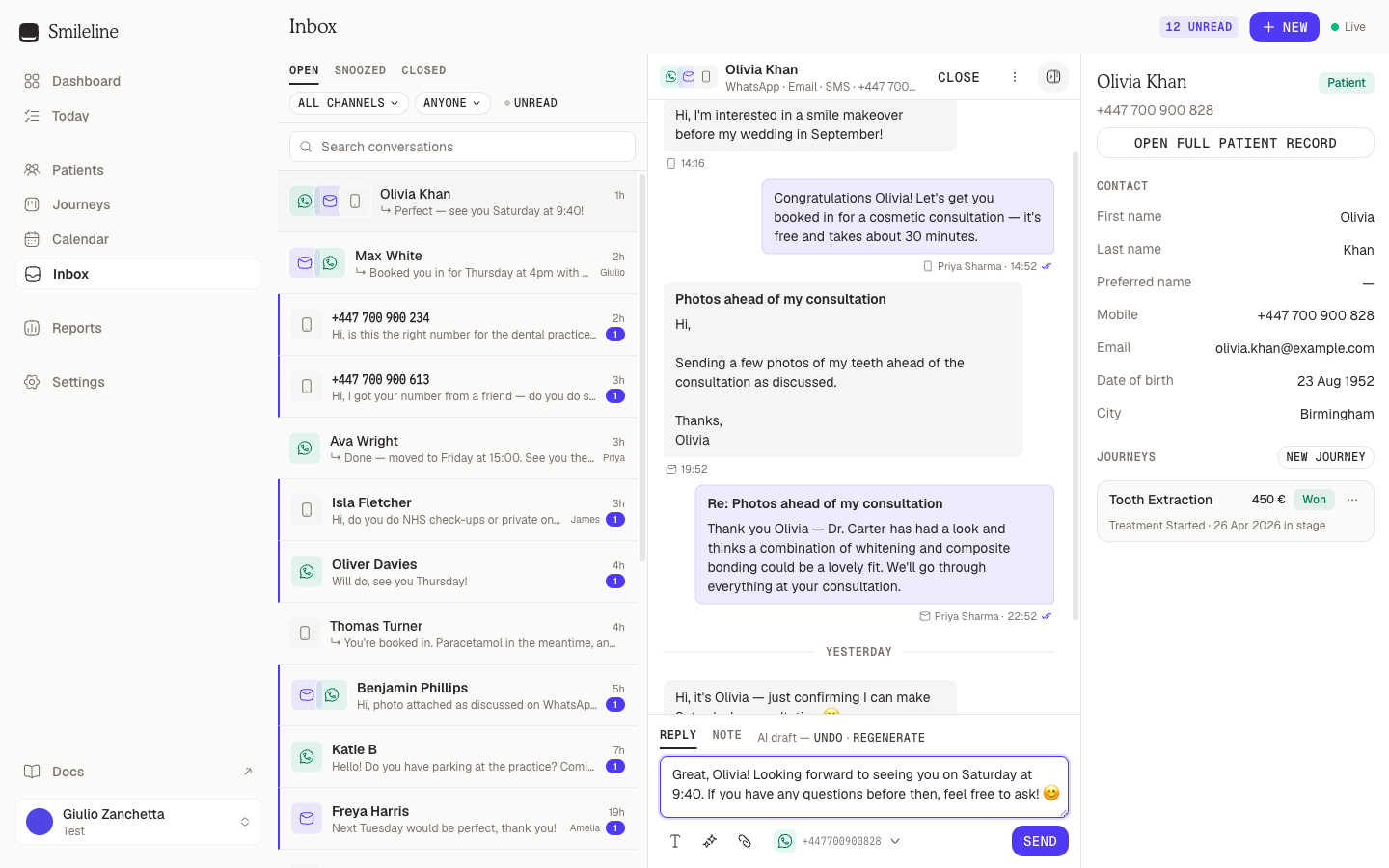
The suggestion matches the channel the reply will ride — short and informal for WhatsApp and SMS, fuller for email — and answers the patient's latest messages.
Summarise a conversation
Long thread, new shift? Choose Summarize conversation from the same AI assist menu. A summary appears as a notification with a Save as note action — click it to keep the summary in the thread as an internal note the patient never sees.
Report AI content
Anything the AI wrote can be reported. Messages the AI sent in a thread — the website widget's assistant replies and the AI voice agent's confirmations — show Report next to their timestamp, and an AI draft in the composer has its own report link. Say what was wrong and click Send report.
A report reaches the Smileline team as a support message. It carries your words, the message or conversation reference, and your name and practice — never the AI text itself. Reports share the platform support limit of 30 messages per minute.
Limits
- Rate limit. AI assist is rate-limited per organisation, shared by everyone at the practice: bursts of up to about 30 requests, roughly 180 per hour in sustained use. Past the limit you'll see "AI assist rate limit reached — try again shortly".
- Empty threads. Both actions need at least one message in the thread to work from.
- Availability. If AI assist isn't configured for your workspace, the actions return "AI assist is not configured" — contact your administrator.
AI output is a starting point, not a decision. Always review a draft before sending, especially anything touching clinical or pricing questions.