Working with conversations
Read, answer and triage patient messages from every channel in one place.
The Inbox gathers every WhatsApp, SMS and email exchange into one screen. This page shows you how to read a conversation, reply, leave internal notes, attach files, and keep the queue tidy with assign, snooze and close.
On web and mobile, conversation titles show the linked patient's name, or the sender's profile name when the conversation is unlinked. Messenger and Instagram recipient labels also use the available profile name in the thread header and reply-channel picker. Phone numbers and email addresses stay visible in the picker so you can choose the right destination. A channel ID is the fallback when no profile name is available.
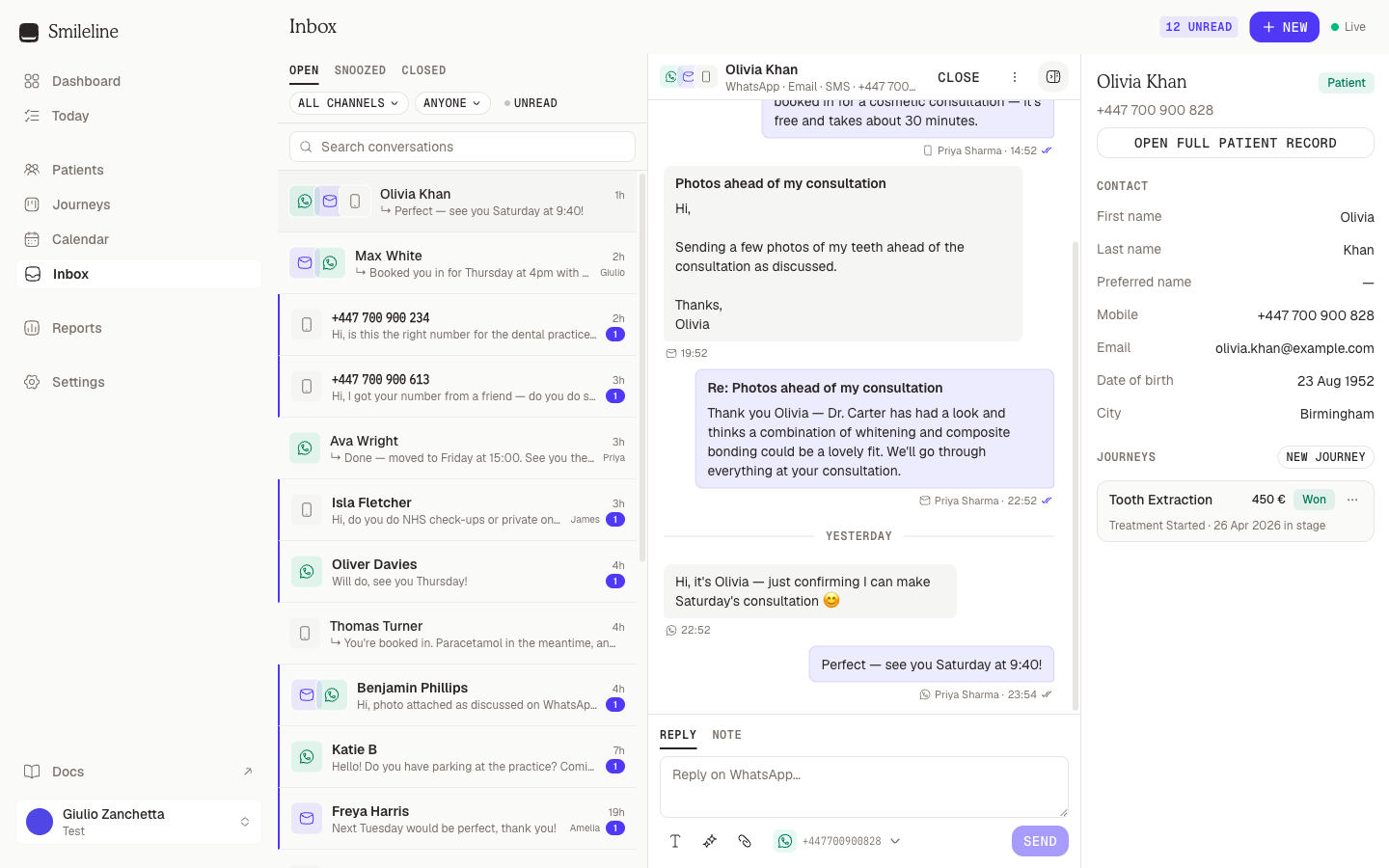
Open the Inbox from the sidebar. The page has three panes: the conversation list on the left, the open thread in the middle, and the contact panel on the right.
Find the conversation you need
- Switch between the Open, Snoozed and Closed tabs above the list. Open is everything that still needs attention.
- Narrow the list with the channel filter (All channels, WhatsApp, SMS, Email), the assignee filter (Mine, Unassigned, Anyone, or a colleague), and the Unread toggle.
- Type in Search conversations to match a contact's name, phone number, email address or the last message.
Unread conversations show a badge with the unread count, and the header shows how many conversations are unread in total. New inbound messages appear in the list the moment they arrive.
The list works from the keyboard: press j/k (or the arrow keys) to move, Enter to open, and Esc to close the thread. Opening a conversation marks it as read.
Read the thread
Messages from the patient sit on the left; yours sit on the right with delivery ticks — a clock while sending, one tick for Sent, two for Delivered, and two coloured ticks for Read. Scroll up to load older messages. Emails show their subject line; click Show full email to expand a long one. A web address in a message is clickable and opens in a new tab.
Message times and the day separators follow the practice timezone set under Settings → Practice details, not the clock of the device you are reading on, so a message sent at 09:10 at the practice reads 09:10 from anywhere. The mobile app does the same.
A conversation can span more than one channel — the same contact's WhatsApp, SMS and email messages live in a single thread, each message marked with its channel icon. A parent, guardian or guarantor may represent more than one patient through that contact. In that case, each message records which patient it concerns before consent, timeline and automation effects are applied.
When a practice retention period removes patient-bearing message content, the thread keeps the message's direction, channel, time and delivery state but replaces its body with Content removed by your data retention policy.
Reply
Open the conversation and click into the composer at the bottom. Make sure the Reply tab is active.
If the thread spans several channels, check the channel picker next to the attach button. It defaults to the channel the patient last wrote on; click it to reply on a different one.
If the contact represents more than one patient, use Message about to choose the patient this reply concerns. Smileline uses that choice for consent checks, the patient timeline and automation.
Type your message. For email replies you can set a subject — leave it blank to reply on the thread's latest subject.
Press Enter or click Send. Shift+Enter adds a new line instead.
Email replies use the same visual editor as email templates, so a reply can be
formatted rather than plain text. The reply box turns into the editor when you
click into it (or expand it), keeping anything you have already typed: type /
for layout blocks, select text for formatting, and paste or drag in an image to
add one inline. Because Enter starts a new line in an email reply, it sends
with Cmd/Ctrl + Enter or the Send button. Every other channel — and
internal notes — stays a plain text box where Enter sends.
For a longer email, click the expand button in the composer's toolbar to write it in a full window. Everything works the same there — subject, templates, AI assist, attachments and the channel picker — and closing the window puts the draft, formatting included, back in the thread.
You can't send on a channel that is disconnected or that the patient has opted out of — the composer tells you why and lets you pick another channel. WhatsApp replies are also subject to the 24-hour window; see Channels.
When a shared family contact replies and the message cannot honestly be tied to one patient, Smileline stops reply-sensitive nurture for every patient that contact represents. It does not put the reply on one patient's timeline or count it as that patient's campaign response.
Your unsent drafts
Whatever you type in a conversation's composer is saved as your draft about a second after you stop typing, and Saved appears beside Send. Switch to another conversation, reload the page or open the Inbox on another computer, and your draft is back where you left it. Drafts are personal: nobody else sees yours, and there is no limit on how many conversations you keep one in.
- Sending clears only the text that was sent. Anything you type while the message is still on its way stays in the composer and becomes your next draft.
- If a message doesn't reach Smileline — you went offline, or the send failed — your text stays in the composer and in your draft, so nothing is lost. Press Send again without changing the text, or Retry on the message: if the first attempt did arrive after all, the patient still gets it only once.
- If Not saved appears, click Retry. Your text stays in the composer meanwhile.
- When two conversations merge and you had a draft in each, both texts are kept: the second follows a "From merged conversation" line.
- Attachments aren't kept in drafts. Add files again after reopening a draft.
Attach a file
Click the paperclip icon in the composer and pick one or more files, drag them onto the composer, or paste a copied image or file straight into the message box. Each file is limited to 16 MiB; email takes up to 20 files and 25 MiB combined, and the other channels follow their provider's own rules — hover the paperclip to see the rule for the channel you are replying on, and see Channels for the full list. The paperclip is hidden where the channel cannot carry files (SMS outside the US and Canada, Instagram comment replies). A file that the channel cannot deliver is refused before it uploads, with the reason.
Smileline keeps an uploaded file private until you send the message. The upload expires after one hour if you abandon the draft, and each upload can be sent only once. If it expires, upload the file again. Images show as thumbnails before and after sending; click one to see it full size, and Open original opens it in a new tab. Videos and voice notes play in the thread — in Safari and on iPad too — and you can skip to any point in them. Documents and unknown file types download instead of opening as a page.
Leave an internal note
Switch the composer to the Note tab, write your note, and click Add note. Notes appear in the thread on an amber card marked "not visible to the patient" — they are never sent. Use them for handovers and context.
Who gets a conversation
Every conversation is assigned to someone automatically, so its alerts go to one person rather than the whole team. Each time a message arrives, Smileline gives the conversation to the first of these who can take chats:
- The person it is already assigned to.
- The lead's owner (the owner of their newest open journey).
- The person set for the channel the message came in on, under Settings → Assignment.
- The person set for Everything else on the same page.
- The practice owner.
Owners, managers, front desk and telesales can take chats. Anyone else, and anyone who is suspended, is skipped. If nobody on the list can take the conversation, it is left unassigned and everyone who receives patient replies is alerted.
Working a lead makes its conversation yours, even when a colleague had it:
- sending a reply in it (an internal note doesn't count, and automatic messages never move it);
- recording an outcome on the lead in Today — see Who gets the lead's chats;
- creating a lead from it.
Triage a conversation
The thread header carries the triage actions:
- Click Close when the conversation is dealt with (or Reopen to bring it back).
- Open the actions menu (the
⋮button) for the rest:- Assign to — hand the conversation to a colleague, or set it back to Unassigned. Only people who can take chats are listed. A conversation set back to Unassigned is assigned again when the next message arrives.
- Snooze — hide it until Later today (+3h), Tomorrow 9:00 or Next Monday 9:00.
- Mark unread — put it back in the unread queue for a second look.
- Create lead and Link to patient — see below.
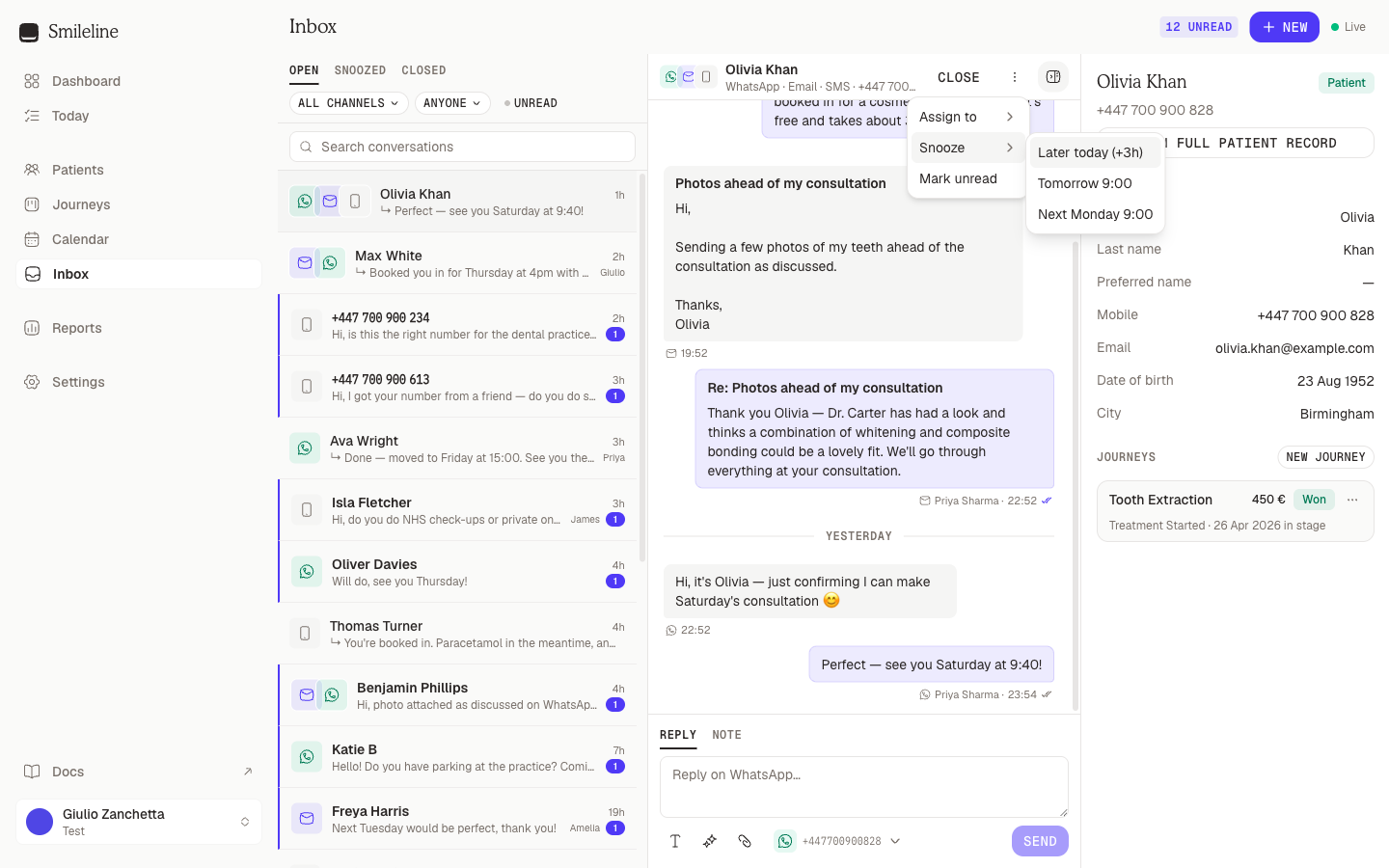
Snoozed conversations reopen on their own when the timer runs out — and immediately if the patient replies. An inbound message also reopens a closed conversation, so nothing slips past the Open tab.
Link a conversation to a patient
Incoming messages match existing patients in your practice by email first, then mobile number, then Other phone when no other patient has that number. If none matches, the sender's full name can link the conversation when it matches exactly one eligible patient's first name and surname. Capitalisation and extra spaces are ignored; partial names, nicknames and usernames do not match. Archived, deceased and merged-away patient records are excluded. Messenger and Instagram also check after their profile name becomes available, including cached names when another message arrives. If the patient already has a thread, the conversations join and their message history is preserved. Existing patient links and shared-contact relationships are kept.
If several patients share the same full name, or no match is available, link the conversation yourself — or, for someone new, create a lead from it. The Contact details panel still shows the sender's name when available, otherwise their number, address or channel ID; Unknown contact appears only when none is available. Names and contact details written inside message text are not extracted for matching.
Click Link to patient in the contact panel (or in the ⋮ menu).
The search starts with the sender's name when available, otherwise their number, email address or channel ID. Search by name, phone or email and pick the right patient — or click Create lead for someone who isn't in the CRM yet.
The conversation and all its past messages are added to the patient's timeline.
A reachable contact has one conversation thread. If the contact you link already has one, the two threads merge into it automatically, and so do your drafts in them. For a shared family contact, choose the represented patient for each new outbound message; Smileline never guesses from the shared phone number or email address.
Once linked, the contact panel on the right shows the patient's details and journeys. You can edit contact fields directly there, or click Open full patient record.
In the clinical workspace inbox, the panel shows the clinical picture in place of journeys:
- Medical: the alerts in force today, and the patient's active allergies, conditions and medications.
- Next appointment: the next booking that hasn't been cancelled, with Book to make a new one.
- Treatment: the open treatment plans, with their status, total and procedures.
- Patient note: the record's note. Click it to edit it in place.
Each section appears only if your role can read it.
Create a lead from a conversation
A conversation that isn't linked to anyone — a Facebook or Instagram comment, a DM, a website chat — becomes a lead in one step, with its journey, its first task and the conversation linked.
Click Create lead in the contact panel. On a phone the panel is hidden: use Create lead in the thread header or the ⋮ menu.
Check the details. The name is filled in, along with any email address or mobile number found in the conversation — including contact-form answers in earlier messages. Messenger and Instagram account IDs are never used as mobile numbers. The location comes from the channel. The lead source comes from where the chat came in, when your practice has a source for it: your social source for comments and DMs, your email source for email. Email and Mobile are optional, because you can reply in the chat — so a lead from a social comment needs neither.
Pick the Treatment they're interested in. It is required: the lead's journey starts on it.
Click Create lead, or Create & record outcome → to open the new lead on Today and record what happened straight away.
If they may already be in the CRM, Already in the CRM? lists people with the same email, mobile or name. Link to name instead links the conversation to that person rather than creating someone new. An email or mobile number that already belongs to someone can't start a new lead: Create lead stays off until you link them or change the detail. Someone with exactly the same name is only a warning, and Create anyway adds the new person.
The new lead starts like any other: it gets its first task and runs your sequences and conversion tracking. The conversation becomes yours when your role can take chats. No AI call is booked for it.
Create lead appears when your role can create patients and journeys. It isn't offered when the contact already represents a patient (a parent writing for a child, say): link that patient instead.
Mark a WhatsApp ad lead
A WhatsApp chat that began from a click-to-WhatsApp ad shows WhatsApp ad lead in the contact panel. When the conversation shows a genuine enquiry, select Mark qualified lead to tell Meta, which sends only Meta's click ID and your WhatsApp account. Your practice must first turn on Report qualified leads to Meta for the number under Settings → Channels. See WhatsApp qualified leads for what is sent and what each outcome means.
Retry a failed message
Most ordinary messages that cannot be delivered show Not delivered with the failure reason and a Retry button. Fix the cause if there is one (for example, a wrong number) and click Retry to send that message again.
If an SMS or WhatsApp provider may have accepted a message but did not return a conclusive response, the bubble instead shows Delivery status unknown. Smileline does not offer Retry for that message because sending it again could give the patient a duplicate. A later signed delivery callback can still recover the message to Sent, Delivered, Read or a confirmed failure.
An appointment reminder suppressed while a historical PMS import resolves a source correction is also non-retryable. Its frozen message may describe an old appointment time. Smileline leaves the reminder lifecycle available for a later live appointment change, which creates a new message with current content.
Smileline also removes Retry after retention has removed the message
content. The API reports MESSAGE_CONTENT_REDACTED rather than risking an empty
message being delivered to the patient.
Smileline also withholds Retry when the original reason for a scheduled message no longer exists: for example, its automation was cancelled or its deposit request was already paid, cancelled or expired. Campaign messages are retried through their campaign workflow, not from the Inbox. Write a fresh manual message if the patient still needs a different follow-up.
Retry is also withheld once a message has stopped being worth sending rather than merely failing. A reminder whose appointment has already started shows Not sent — the appointment time had already passed. Ordinary failed messages, by contrast, are never refused for their age or for how many times they have been retried: every Retry starts a fresh delivery attempt.
Email waits in the delivery queue when the shared email provider is busy. Provider rate limits are retried automatically without using up the email’s ordinary failure attempts. Queued email does not expire merely because it has waited for capacity. Genuine delivery problems remain visible and recoverable.
If a new message cannot be handed to the delivery queue, Smileline retries that handoff on a finite backoff for up to 48 hours. A handoff recorded as accepted is not published again merely because processing is delayed. If the worker cannot tell whether an older handoff succeeded, recovery can create another queue copy after 30 minutes; a persisted provider-attempt claim allows only one copy to submit the patient message, and the generation is not failed while a sibling could still be delivered. For other channels, if a delivery attempt is still queued when its own 48-hour horizon elapses, it is marked as no longer timely instead of being delivered late — and Retry starts a fresh attempt with a fresh horizon.
A send attempt 2 label appears on later attempts. Each attempt has its own finite queue-publication budget, so a retry can never restart earlier attempts' work — only add one more.
Start a new conversation
Click New in the Inbox header, choose a channel, enter the recipient's phone number or email address, and write the first message. If a thread already exists for that contact and channel, your message lands there instead of creating a duplicate. Business-initiated WhatsApp messages must use an approved template — see Message templates.
Working as a temp
Join Smileline Staffing as a temp dental nurse or hygienist, send your checks, accept your terms, then accept and manage your shifts and send your hours.
Channels
How WhatsApp, SMS, email, Telegram, Messenger, Instagram, TikTok, comments and live-chat messages reach the Inbox, and the rules for each channel.