Practitioners
Maintain the list of clinicians appointments are booked with.
By the end of this page your clinician list will match reality, with departed practitioners marked inactive rather than deleted.
What practitioners are
Practitioners are the clinicians appointments are booked with — dentists, hygienists, therapists. The list drives the practitioner picker when booking, the Practitioner filter in reports, and the Practitioner performance report.
A practitioner is not the same as a team member: they don't need a Smileline login, and a team member who never treats patients doesn't need to be a practitioner. Logins and roles are managed separately under Settings → Team members — and that is also where an owner or manager ties a clinician's account to their profile, with Manage on the member's row → Clinical profile. One account links to one practitioner.
A practitioner can work at several locations, with a rota at each — set it on the Rotas page, where each person has a regular week (changed from a date, so earlier weeks keep their history) and one-day changes. Each row is either working time, a break, or a block: online booking offers working time minus every break and block that overlaps it. Saving a clinician's first rota at a location creates their active assignment there. Appointments always point to that exact practitioner/location assignment, so a rota or appointment at one site cannot silently use the clinician's hours from another. Booking also checks the clinician's identity across every site, so overlapping appointments at two locations are treated as the same conflict.
If a location is mapped to a practice management system, that PMS owns the diary: online booking reads availability from the provider, so change bookable hours in the PMS. The Smileline rota still plans the team there, and approved time off entered in Smileline still closes online booking for that clinician. Rotas are not synchronised in either direction.
Manage the list under Settings → Practitioners.
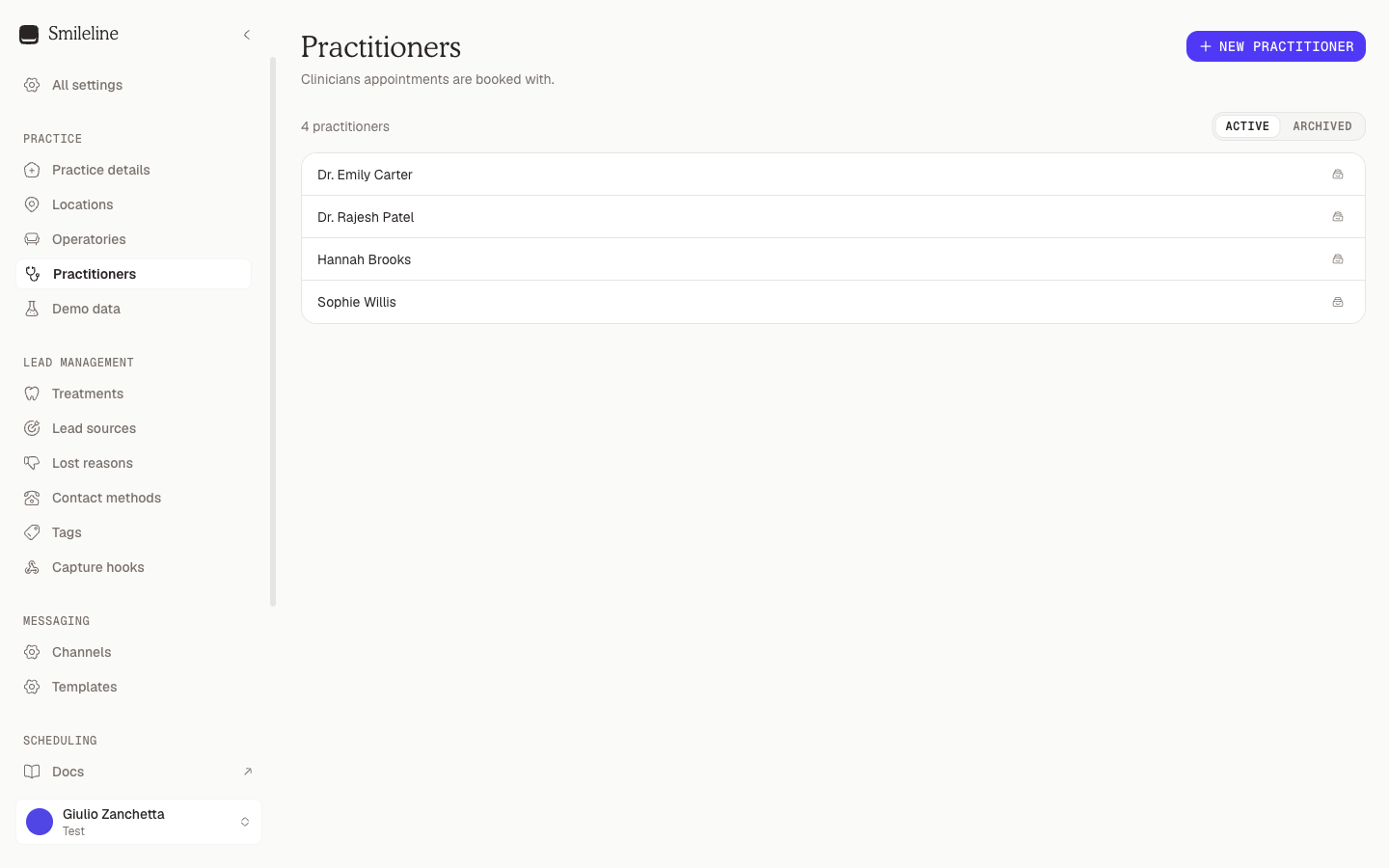
Only owners and admins can change practitioners. Members see the list read-only.
Add a practitioner
Go to Settings → Practitioners and click New practitioner.
Type the Name as it should appear when booking — e.g. "Dr Sarah Whitfield" — and confirm.
Rename a practitioner
Click the name (or the pencil icon that appears on hover), edit, and press Enter. The new name shows on existing appointments too.
Add a photo
Click the pencil on the row and choose a Photo: pick one from your practice's image library or upload a new one (JPEG, PNG or GIF, up to 2 MB; Load more shows older uploads). The photo appears beside the clinician's name on the online booking page. For practices in the UK and the US with the SEO & Ads add-on, it also fills the Dentist card of a campaign template that shows the clinician, where you can still choose another photo. It appears nowhere else, and Remove puts their initials back. Only an image from your own library is accepted.
Choose a diary colour
Click the pencil on the row and pick a Diary colour. The clinical diary uses it for the clinician's initials and, when you choose View → By practitioner, to fill their appointments. Clear takes the colour off; their appointments then show their status colour instead.
Legal name and registration
Click Legal name on the row to record the clinician's name as registered: First name, Last name and Suffix (a generational suffix such as Jr or III, never a qualification). Titles and post-nominals stay in the name you book with.
At a US practice the same dialog holds the clinician's Specialty — the NUCC taxonomy, offered from their role (General Practice for a dentist, Dental Hygienist for a hygienist) — and their individual (type-1) NPI. Practices in other countries do not see these two fields. Insurance claims name the clinician by these details as they stand when the claim is sent; see Insurance claims.
Every save is kept in the clinician's registration history, so a claim already sent keeps the details it went out with.
At an English NHS practice the clinician's NHS performer number is part of the same registration. It is entered when you add them as a performer on an NHS contract (see NHS contracts), and every FP17 carries the number in force when it is queued.
Deactivate and restore
When a clinician leaves, archive them: click the archive icon on their row. They disappear from booking pickers, while past appointments and reports keep their history.
You cannot deactivate a practitioner while they are assigned to an unfinished appointment. Move or cancel those appointments first. Deactivation then closes every current site assignment under the same reservation locks used by booking. Existing appointment history remains intact, while new appointments and rota changes require the practitioner to be active again.
To bring someone back, switch the toggle above the list to Archived and click the restore icon on their row.
Unlike the other settings lists, practitioners have no manual ordering — the list always sorts alphabetically, so there's no drag handle.