CSV export
Download the patients you're currently looking at as a CSV file.
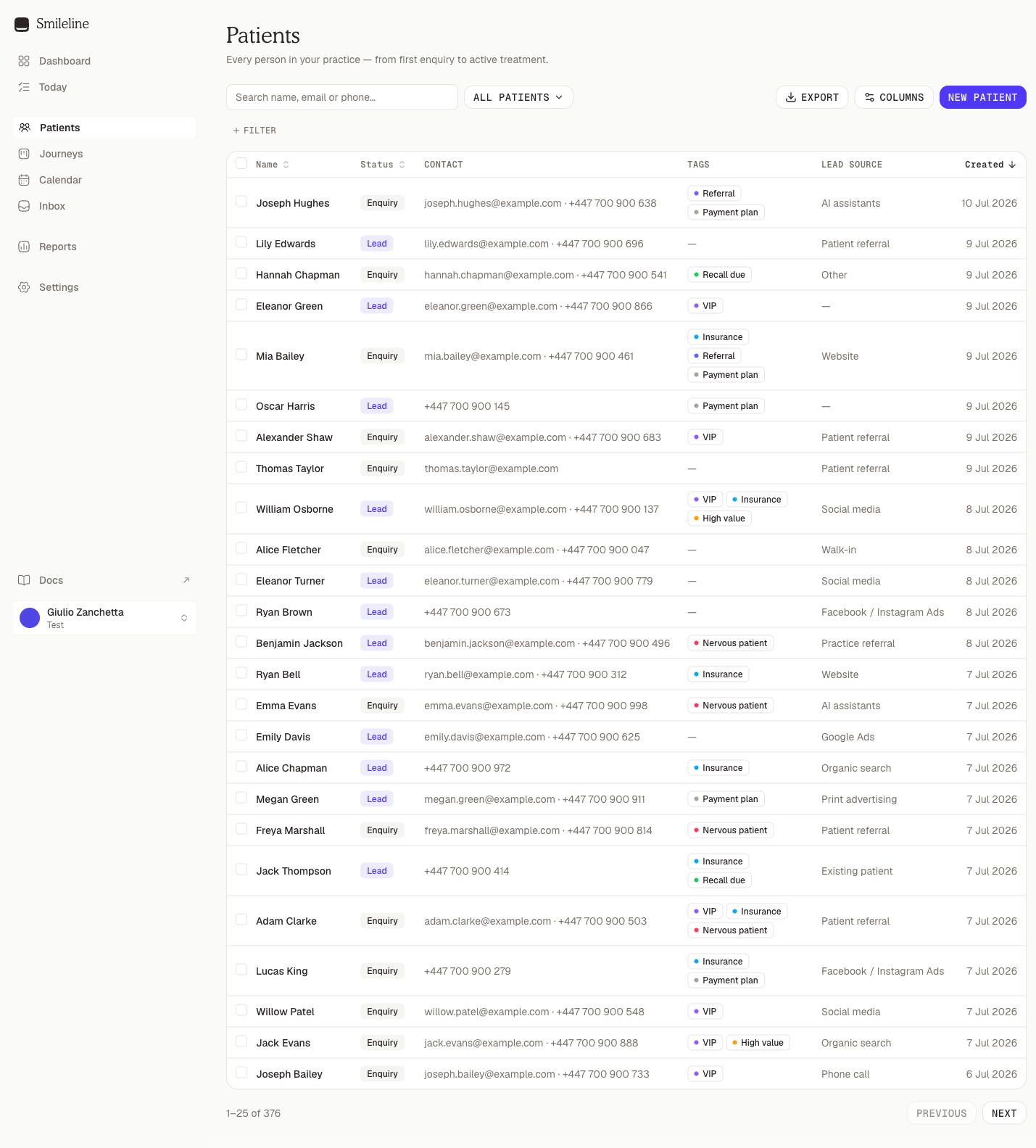
Export downloads the current list — the same search, filters, and sort you see on screen — as a CSV file you can open in Excel, Numbers, or Google Sheets.
Export the current list
Filter and sort the list until it shows the patients you want. What you see is what you get.
Optionally adjust the Columns picker — the CSV contains exactly the visible columns, in their on-screen order. The clinical workspace's columns export too: visits as UTC date-times like the Created column, and Balance as the amount with its currency, or unknown while a US insurance estimate is missing. Smileline's chart number exports as Chart No. and a previous system's number as Previous System No., each in a column of its own; an Italian practice's codice fiscale exports as Codice Fiscale. The clinical list also offers Occupation, GP (exported as GP and GP Practice), Emergency contact (exported as Emergency Contact, Emergency Contact Relationship and Emergency Contact Phone) and Clinician preference, all off until you switch them on.
Click Export at the top right of the list. The file downloads as patients-<date>.csv. On a phone (screens narrower than 768px) the Export and Columns buttons are hidden; export from a tablet or desktop.
Export only selected patients
To export a handful of specific patients instead of the whole filtered list, tick their rows and click Export selected in the bulk actions bar. The same columns rule applies.
Big exports
Up to 10,000 patients download straight away. If your list matches more, the export runs in the background instead, with no row limit: the same search, filters, sort and columns, so the file holds exactly the patients the list does. A message tells you where to collect it:
Click Import & export in the message, or open Settings → Import & export.
Find the export under Recent jobs. When it shows Ready, click Download.
See Import & export for how background exports work.
Export every patient
To take every patient out at once, open Settings → Import & export and click Patients under Export. That file has the name, status (the patient's type), contact details, tags, lead source and created date, newest patient first, and leaves out archived patients. It downloads straight away or runs in the background in the same way.
The Export button is disabled while the list is empty, and shows Exporting… while the file is being prepared.