Saved views
Save reusable patient list filters for yourself or the whole practice.
A saved view remembers a list set-up so you can jump back to it instead of rebuilding it every morning. A patient view stores filters, sort order, and columns.
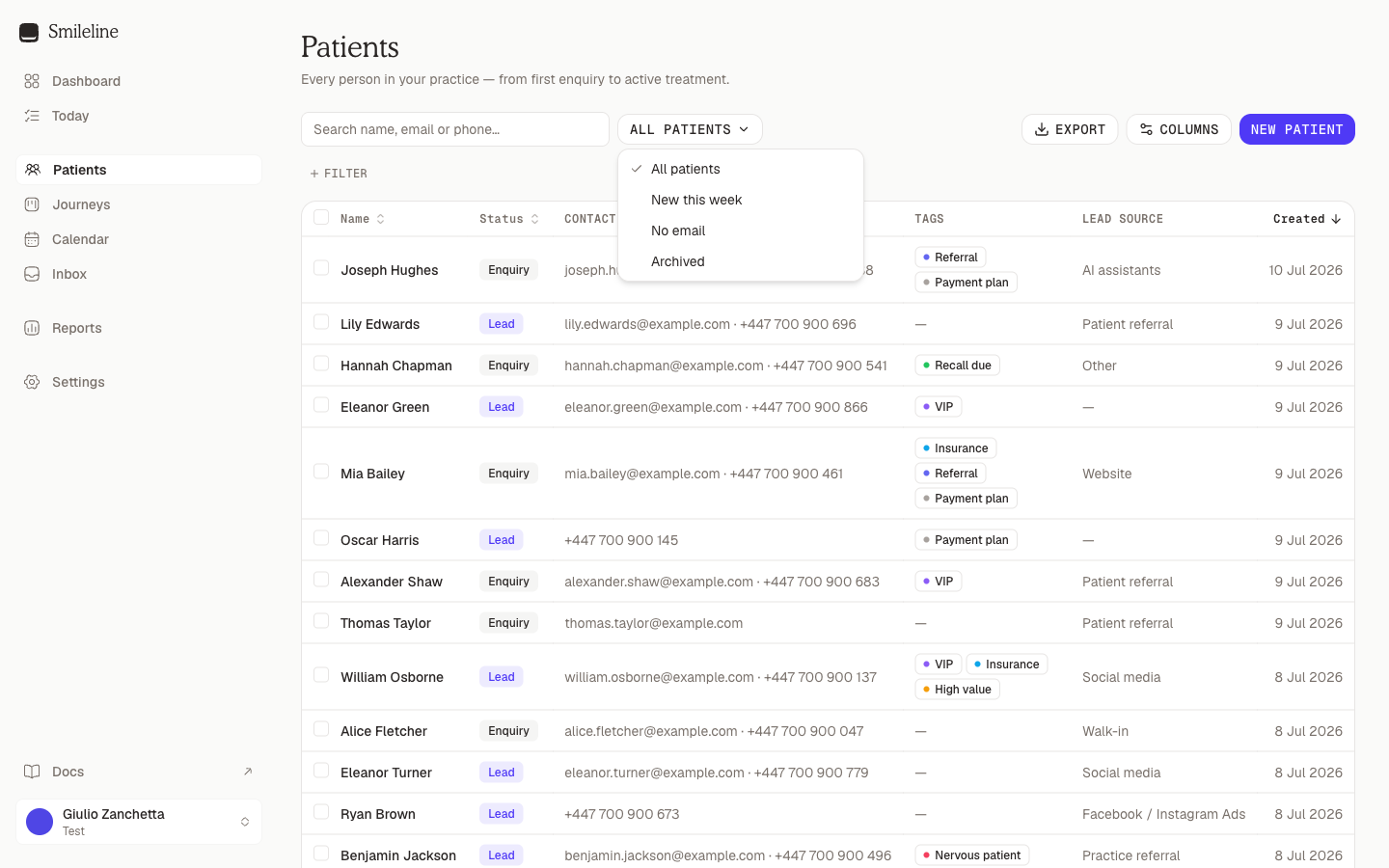
On the Patients page, views live in the dropdown next to the search box.
Built-in views
Every practice starts with eight presets: All patients, Not contacted, New today, New this week, Booked today, Booked this week, No email, and Archived. Not contacted lists the leads nobody has tried to reach yet, the same list as the Not contacted filter. Presets can't be edited or deleted — they're a starting point for your own views.
Reloading the page keeps the filters as you left them, even a view's filters you switched off, and shows the view's columns. A link to a view applies its filters.
Save a view
Set up the list the way you want it: filters, sort, and columns. A dot appears on the view switcher whenever the list differs from the selected view.
Open the view switcher and click Save as new view….
Give the view a name. Tick Share with the whole practice if colleagues should see it too, then click Save view.
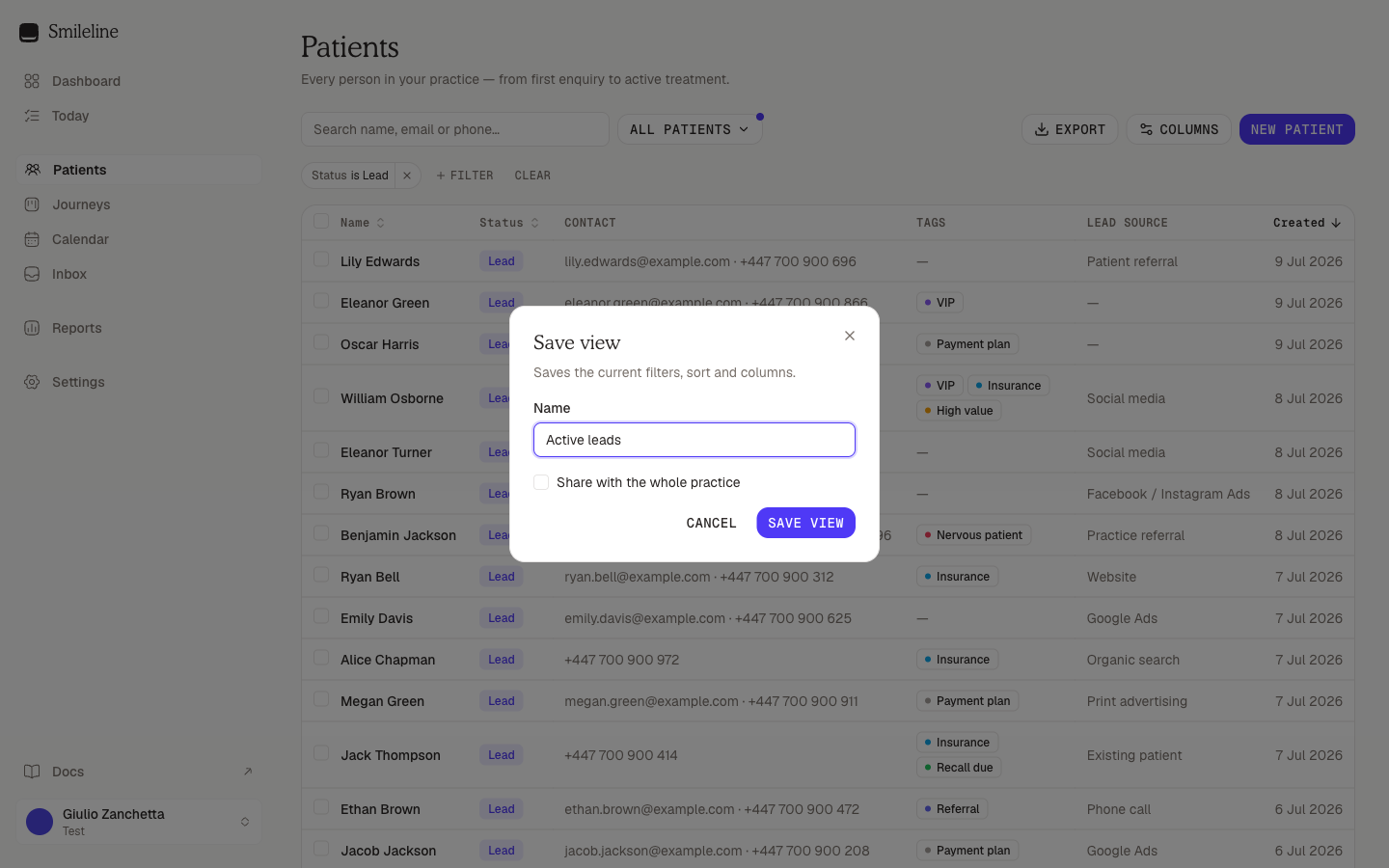
A view stores filters, sort, and columns — not the search box. Search is always ephemeral.
Private or shared
- Private views appear under Your views and are visible only to you.
- Shared views appear under Shared for everyone in the practice.
The switcher loads your views in pages of 20,000. In the rare case you have more, it shows More at the end of the list: click it to load the rest. The same applies to the Inbox's views.
Anyone with access to the patient list can create either kind. You can always update or delete your own views; shared views can additionally be updated or deleted by practice owners and managers.
Update a view
Select the view, adjust the filters, sort, or columns, then open the switcher and click Save changes to "your view's name". If you can't manage that view (for example, a colleague's shared view and you're not an owner or manager), use Save as new view… to keep your variant.
Delete a view
Open the view switcher, hover over the view, and click the bin icon next to its name. Deleting a view never touches any patient data — it only removes the shortcut.
Link straight to a view
Selecting a view puts it in the page URL, so you can bookmark it or send the link to a colleague. If the link points to a shared view, they'll land on exactly the same list.
Saved patient views also appear in Quick search for roles that can open the Patients page.
Favourite reports
Reports have saved views of their own: click Add to favourites on a report to keep it with its filters at the top of the reports page. See Favourites.