Practice details
Set your practice identity, messaging defaults, letterhead, data retention, operational defaults, production goals, second-person till review, voice notes and imaging.
By the end of this page your practice's identity, web presence, messaging defaults, letterhead, data retention, operational defaults, production goals and till review will be set.
Open Settings → Practice details. Each card has its own Save button.
Only owners and managers can edit these settings. Address, phone and opening hours are per-site and live under Locations & operatories.
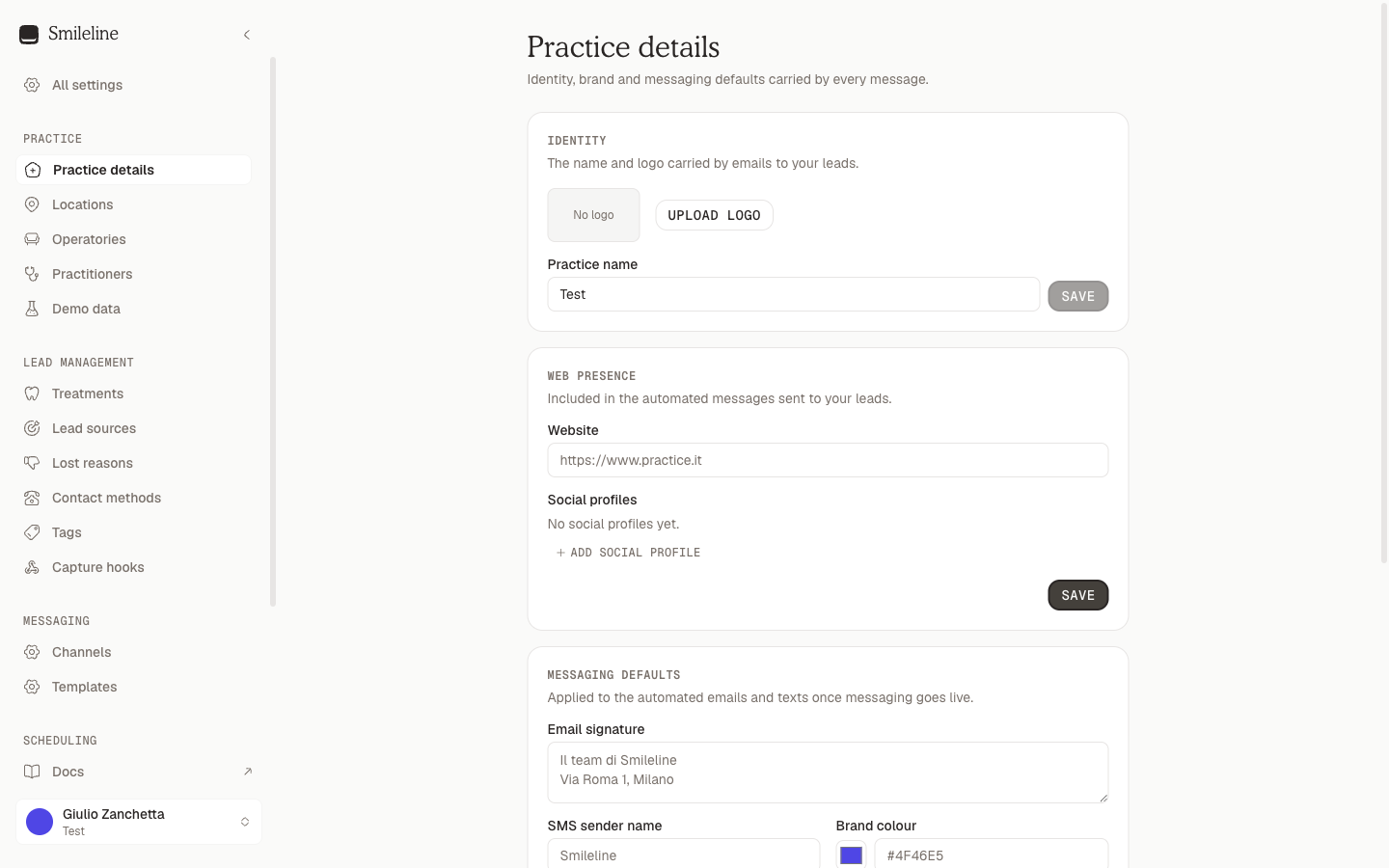
Identity
The name and logo carried by emails to your leads:
- Upload logo — JPEG, PNG or WebP, up to 5 MB. Remove clears it.
- Practice name — shown as the sender identity across outgoing messages.
Legal entities
Legal entities lists the company that bills for your practice's work. Every practice has one, marked Primary, named after the practice until you change it. Click Edit to set:
- Legal name and Registered address — the company behind your invoices and credit notes, printed on each one beside the site that issued it.
- Company number (UK practices) — the eight-character Companies House number.
- VAT number (outside the US) — the partita IVA or the UK VAT registration. Leave it blank if the company is not registered.
- Fiscal code (Italian practices) — the codice fiscale, where the company has one apart from its VAT number.
- Billing NPI (type 2), Tax id (EIN), Taxonomy code and State (US practices) — the billing provider on insurance claims, the same details as Claims billing identity.
An invoice keeps the company details it was issued with: a change here applies to invoices issued afterwards, and a credit note repeats the details of the invoice it credits.
Web presence
Included in the automated messages sent to your leads:
- Website — your practice site's full URL.
- Social profiles — add up to ten links (Instagram, Facebook, TikTok, YouTube, LinkedIn, X, Google).
Messaging defaults
Applied to automated emails and texts:
- Email signature — a reusable sign-off (up to 2,000 characters). It is
not added automatically: insert it in a template with
{{practice.signature}}, so a short nudge never carries a full sign-off. - Email logo — a picture from your practice's image library. Like the
signature it is not added automatically: insert it in a template with
{{practice.logo}}, so a one-line reminder never carries a letterhead. Changing it here updates every template that uses the tag. The same image heads your online booking page. - SMS sender name — what carriers display as the sender of text messages; maximum 11 letters, digits or spaces.
- Brand colour — a hex value like
#4F46E5, used to brand outgoing emails and the headings of your printed documents. Pick with the swatch or type the code. - Outbound marketing eligibility — whether marketing campaigns require explicit consent, or may also use a separately recorded soft opt-in. Smileline never infers soft opt-in. Automation follow-ups are service messages, so this setting doesn't apply to them (see Automations).
Changing the policy does not create consent evidence. Record the patient's current SMS, email or WhatsApp basis on their patient page before sending.
Automatic holding message
WhatsApp, Messenger and Instagram only allow automatic replies for 24 hours after a customer's last message. If nobody on your team has replied, Smileline sends one holding message before that limit so the conversation is not lost. Automatic holding message is on by default; turn the switch off to stop it.
- It goes out once per customer message, only inside your Sending hours, and never within 1 hour of the customer's message.
- It is skipped for closed chats and for simple "thanks", "ok" or "bye" replies.
- It always ends with an "(Automatic message)" label, or "(Automatic message written with AI)" when AI wrote it.
See Reply windows and reminders for every case it skips and the alerts your team gets before a chat closes.
Leave Holding message text blank to send the standard text in your
practice's language, shown greyed out in the box. To write your own, type up
to 480 bytes (the counter below the box keeps count; accented letters use two
bytes and emoji four). {{patient.firstName}} and {{practice.name}} fill in
the customer's first name and your practice name. Click Save on the card.
With the AI add-on, AI writes a short personalised holding message instead, and falls back to this text when it is unsure.
Sending hours
Sending hours sets the days and hours when automatic messages, including the holding message, may go out, in the practice timezone. Pick the days, set From and Until, and click Save sending hours.
Letterhead
One letterhead heads and closes every document Smileline prints for you: prescriptions, treatment plans, invoices and credit notes, statements, payment plan agreements and letters.
- Show your logo — puts your Email logo above your site's name and address. Choose the logo under Messaging defaults first; until then the switch is off.
- Your Brand colour colours each document's headings and dividing rules.
- Footer line — up to 1,000 characters printed at the end of every document, for example your company's registered name and number. Leave it blank for none.
Click Preview to see a sample letter to a fictional patient with your logo, colour and footer — including changes you haven't saved — then click Save.
US practices print on Letter paper and everyone else on A4; prescriptions print on A5 everywhere.
The letterhead adds to a document, never takes away: the legal details a document must carry — an invoice's legal entity, Italy's invoice wording, a prescriber's registration and the signature lines — always print, and the footer line comes after them. A new letterhead applies to documents printed from then on; anything already filed stays exactly as it was printed.
Data retention
Use the Data retention card to choose how long patient-bearing detail remains available. Leave a field blank for Forever, or enter a whole number of days:
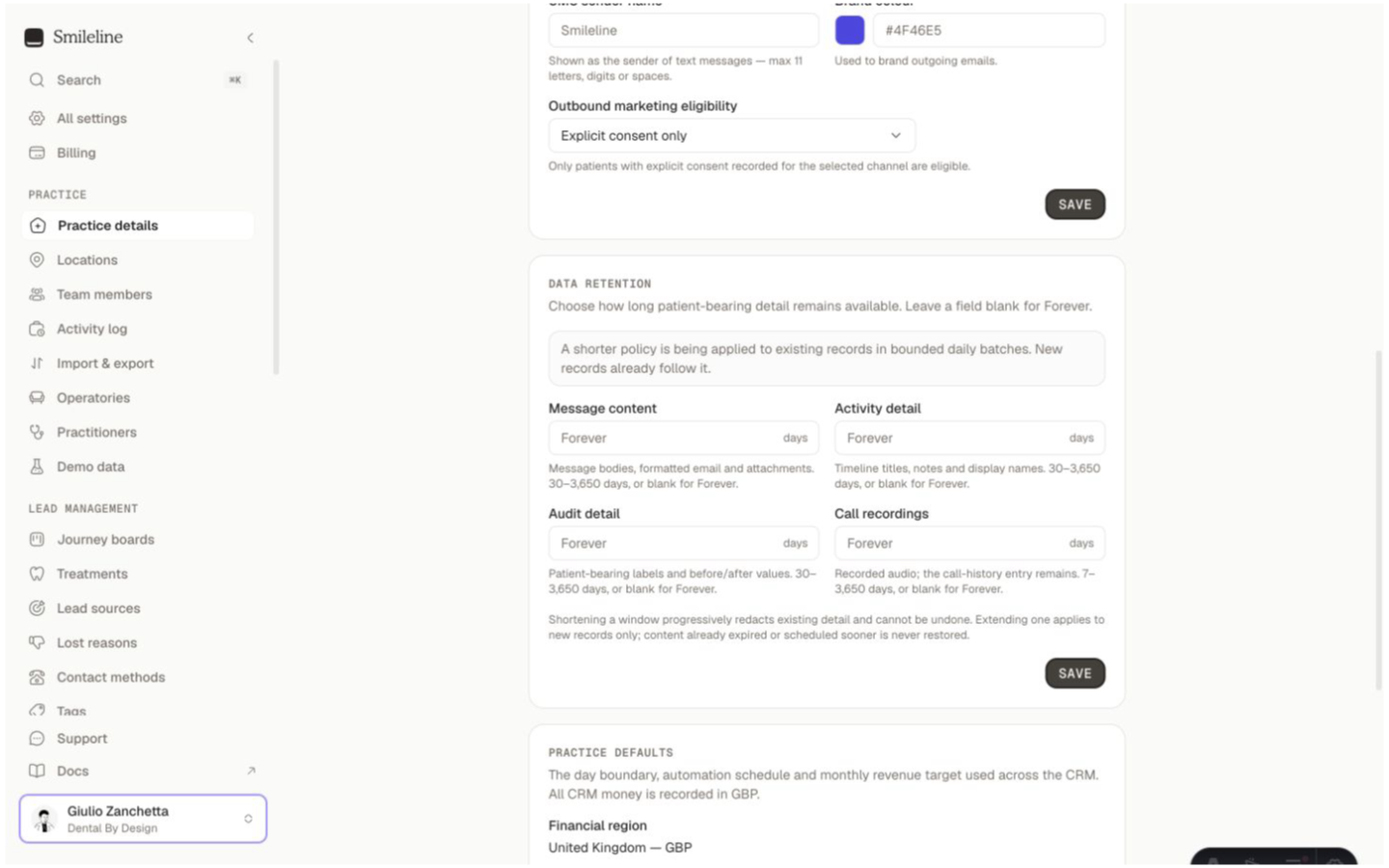
- Message content — message bodies, formatted email and attachments; 30–3,650 days.
- Activity detail — timeline titles, notes and display names; 30–3,650 days.
- Audit detail — patient-bearing labels and before/after values; 30–3,650 days.
- Call recordings — recorded audio; 7–3,650 days. The default is 90 days.
Until you change them, message content, activity detail and audit detail are kept forever. Call-history entries remain after their audio is deleted, and structural message, activity and audit records remain after their patient-bearing detail is redacted.
Click Save to apply all four fields together. New records follow the saved settings immediately. When you shorten a window, Smileline applies it to existing records progressively in bounded daily batches; the card shows while that work is applying. If the work stalls, the card says so, and the work resumes on its own the next day, carrying on from where it stopped. Contact support if the notice keeps coming back.
Retention settings cannot be changed after the practice enters Closing or Purging. Deadlines already materialized on patient-bearing records and the bounded automated redaction work continue to run.
Shortening a window cannot be undone. Extending a window or changing it to Forever applies to new records only: content already expired, or already scheduled to expire sooner, is never restored or postponed.
Erasure requests
The practice owner sees Erasure requests at the bottom of the Data retention card, once erasing is switched on: every patient erasure the practice has asked for, newest first. A row never shows the patient's name. It shows a short reference — the first eight characters of the request — when it was requested, and its state:
- In progress, with the step it has reached, such as Step 3 of 20;
- Waiting, with what it waits for, such as Waiting for a call to end;
- Needs attention, with the reason and Retry, which continues from where it stopped;
- Erased, with when it finished;
- Kept, when the patient had records that must be kept, with until when and why, such as Kept until 6 Oct 2037 because of the clinical record, and Download kept record, which opens what the erasure kept under the restricted identity (see Download a kept record). When a record kept afterwards was made at a location in a country Smileline has no record-keeping rule for yet, the row says so: contact Smileline support.
Stored files have a line of their own: Files: removed, Files: still being removed, or Files: need attention with Retry cleanup. Load more shows older requests.
Practice defaults
- Financial region — fixed when the practice is created. United States practices use the US service region and USD. The United Kingdom uses the EU service region and GBP; every other currently supported country uses the EU service region and EUR. This fixes the practice's legal country, service region and accounting currency for treatment, journey, target, deposit, PMS and referral amounts. Subscription billing uses the same currency when a catalogue is approved; EUR subscription pricing is not yet available.
- Monthly revenue target — the goal the dashboard's revenue meter measures against, shown in the selected accounting currency; leave empty to remove the target.
- Practice timezone — the IANA timezone used for every timestamp the app and the mobile app show (message times, Today buckets, due days, snooze targets), report boundaries and automation wall clocks. Nothing follows the clock of the device you are reading on.
- Automation opening hours — the location whose weekly opening hours control business-hours waits in follow-ups. Without one, those waits pause until the setting is configured.
Practice timezone, automation location and monthly revenue target remain editable under Settings → Practice details. The financial region is not an editable setting, so the practice cannot move between service regions, existing money cannot be reinterpreted later, and any Stripe connected account is created for the correct legal country.
The currently selected automation location cannot be archived. Select another active location first, then archive the old one. A missing opening-hours schedule pauses business-hours automation steps for correction—it never makes them run outside the intended schedule.
Production goals
Production goals sets a monthly goal for the Production report: for the whole practice, for one site, or for one clinician (never a clinician at one site). It is separate from the Monthly revenue target above, which measures the CRM dashboard's journey revenue.
- Under Goal for, choose The whole practice, a site or a clinician.
- Under From, choose the month the goal starts.
- Enter the Monthly goal and click Save goal.
A goal carries on from its month until you set another for the same practice, site or clinician, so you set it once rather than every month. Earlier months keep their own goal. To correct a month's goal, click Edit on its row, change the amount and save; Remove deletes that month's goal, and the earlier goal applies again from that month.
Your edit is checked against the goal as it was when you clicked Edit. If someone else changed or removed it first, saving tells you so and refreshes the list, and your figures stay in the form: click Save goal again to replace theirs. If removing a goal tells you it changed, check the refreshed row and remove it again if you still want to.
A clinician who leaves keeps their goals, so past months still show theirs. Owners and managers can set and remove goals.
Till and banking
The Till and banking card has one switch, Till reconciliation needs a second person. It is off until you turn it on, and it applies to every site. It saves as soon as you switch it.
With it on:
- Whoever closed a till can't reconcile it. They see Waiting for review on the session, and anyone else with access to the till reconciles it. See Payments → Today.
- A till with no recorded closer shows Closer not recorded. Only an owner or manager can reconcile it, with a note saying how it was checked.
- Whoever prepared a bank deposit can't confirm it. See Banking.
A till that was over or short always needs a note to reconcile, whether or not the switch is on.
Voice notes
The Voice notes switch lets the practice's clinicians record a dictation or an appointment and have Smileline write a draft note from it (see Voice notes). It is off until an owner or manager turns it on, and it saves as soon as you switch it.
The note beside the switch says what is recorded, that Cloudflare and OpenAI process it for Smileline, and that the recording is kept with the patient's clinical record.
Voice notes are available only where Smileline has qualified them for your practice's country; they are not available in any country yet. Until then the switch does not appear, and Smileline refuses to turn it on.
Imaging
The Imaging card lists the imaging programs at each site and the computers set up to send images. Anyone who can read patients' documents sees it; owners and managers change it.
Imaging programs
Click Add imaging program and choose the Program (Planmeca Romexis, Sidexis or CS Imaging), its Site, an optional Name and the Date order the program's database uses. Then answer How does Planmeca Romexis number its patients at this site?:
- Smileline numbers — the program's patients are numbered with Smileline chart numbers: a new database, or one already set up that way. Open in… sends the patient's chart number.
- Linked — the program keeps its own numbers. Each patient needs a link before they can be opened in it, made once by a person who checks the number (see Open in…). Your previous system's numbers are never used by themselves.
Tick I've checked how Planmeca Romexis numbers patients at this site. and click Add imaging program. The numbering can't be changed later: a database numbered the other way is added as another program. A site has one live database per program. Edit changes the name and date order; Archive takes a program off the patient's record and Restore puts it back.
Computers
Every computer set up for imaging from the desktop app is listed with its site and who set it up and when. Revoke (click it twice to confirm) stops a computer at once: it can no longer send images or open imaging programs, and the images it already sent stay in Images to file. A revoked computer is set up again from the desktop app.
Keep the desktop app updated before using imaging connections. The desktop verifies that an imaging command was signed for its environment; a setup computer using an older app may need an update before it can accept newly signed commands.