Locations & operatories
Set up your practice's sites and the treatment rooms inside them.
By the end of this page each of your sites will exist in Smileline with its contact details and opening hours, plus the operatories (treatment rooms and chairs) inside it.
Locations
A location is a physical site: its address, phone, email, timezone and opening hours. Leads, appointments and capture hooks can all be pinned to a location, and reports can be filtered by one. Manage them under Settings → Locations.
The first active location in the list carries a Primary badge — it's the fallback for leads that arrive without a location. Drag rows to change the order.
While your practice has a single active location, everyone on the team who has no site yet works there automatically — anyone who joins, and the existing team when you add your first location. Agency seats are never placed. Once you have several locations, choose each person's sites under Settings → Team.
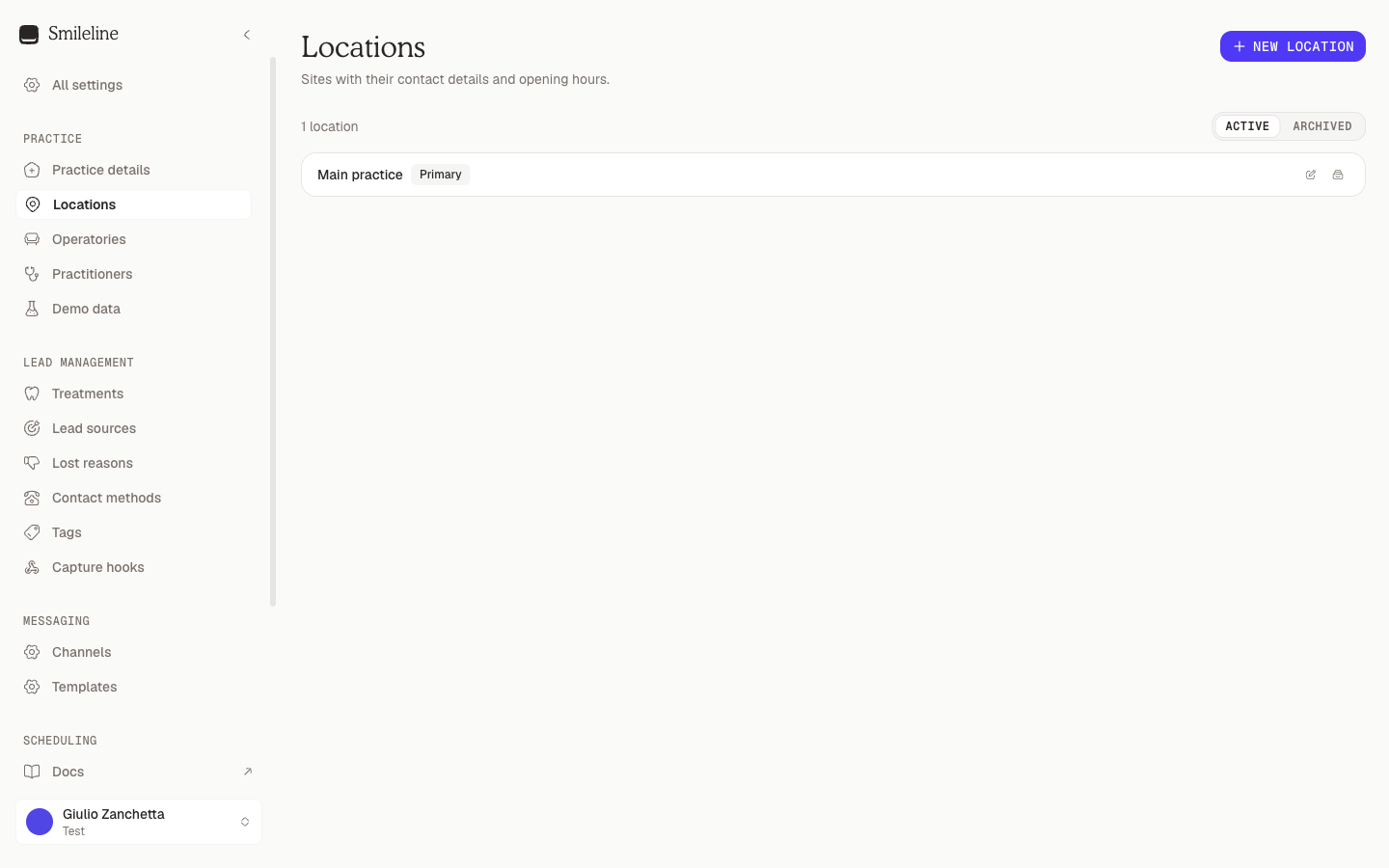
Add a location
Core includes two active locations. Each further active location is £79 or $99 a month on your subscription, added when you create or restore it and removed when you archive it, prorated on the next invoice. Adding one needs an active subscription; the free trial counts. See Billing.
Go to Settings → Locations and click New location.
Fill in the Name and pick the Timezone — it drives how that site's dates and report windows are bucketed. New locations start from your practice country's default zone (US practices choose theirs during onboarding), and you can change it here at any time.
Add the Phone and Email. Start typing the practice address in Address line 1 and pick a Google Places suggestion — it fills the rest of the address fields and confirms the coordinates used for local grid scans.
Review the filled address. Address line 1 stays free-form, so you can type an address Google does not recognise — but manual entry does not confirm coordinates and local grid scans remain disabled. Pick the Country from the list of countries Smileline supports. UK practices pick the Nation (England, Wales, Scotland or Northern Ireland) and US practices the State: it decides which clinical rules apply at that site and cannot be left empty.
Tick Every appointment here needs an operatory when the site books by chair: appointments at that location must then name a treatment room.
Set the opening hours: up to four open intervals per weekday, in HH:MM — leave a day empty to mark it closed.
Save. The location is now available in pickers across the app.
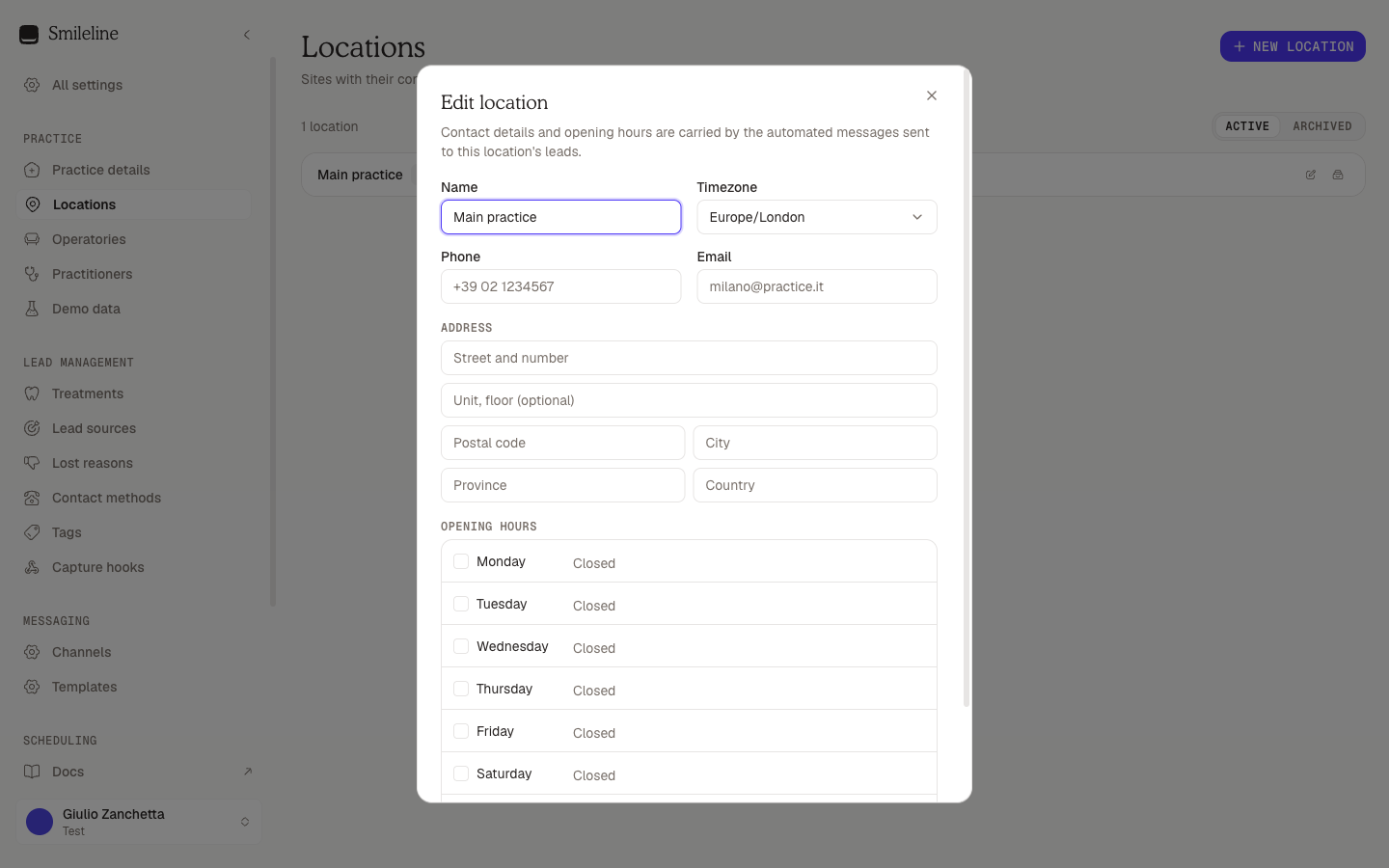
Editing Address line 1, Postal code, City, Province or Country clears previously confirmed coordinates. Editing Address line 2 does not. Pick a suggestion from Address line 1 again to reconfirm the coordinates and make grid tracking available in Search visibility.
Edit, archive, restore
- Edit: click the pencil icon on the row to reopen the full editor.
- Archive: click the archive icon and confirm. Archived locations disappear from pickers across the app; existing records keep them.
- Restore: switch the toggle above the list to Archived and click the restore icon. Restoring a location beyond the two Core includes restarts its charge.
Before archiving a location, finish or move its unfinished appointments, active journeys and open tasks. Also unlink its active capture hooks, operatories, practitioner assignments, messaging connections, PMS and Reputation mappings, lead-ad default and practice automation default. The error tells you which item still needs attention. Historical patients, closed journeys and completed or cancelled appointments don't block the archive.
Only owners and admins can change locations. Practice-wide identity (name, logo, website) lives separately under Practice details.
Operatories
Operatories are the chairs and rooms inside a location — what appointments are ultimately booked into. Manage them under Settings → Operatories.
They behave like the other vocabulary lists, with one addition: every operatory belongs to a location. Each one can also carry a Diary colour: when the clinical diary is coloured By room (View menu), appointments in that room are filled with it.
Every site starts with three rooms (two surgeries and a hygiene room, named for the practice's country). After that the list is yours: rename, add or archive rooms to match the practice.
Go to Settings → Operatories and click New operatory.
Type the Name (e.g. "Surgery 2") and pick its Location.
Drag rows to set the order they appear in when booking.
Archive an operatory when a room goes out of service — the archive icon marks it inactive, and the Archived view lets you restore it later. Move or cancel any unfinished appointment that still reserves the operatory first. Past and otherwise completed appointments keep their room without blocking the archive.